Grid Page Filtering
This article describes how users can filter grid style pages.
Overview
There are four primary sources of filter specifications on grid-type pages:
Named filter specifications
Page specific filter options
Column specific filters
Filter Controls
Three of the four filter controls are the same on all grid pages. There is a different set of Filter Options for different types of grid pages.
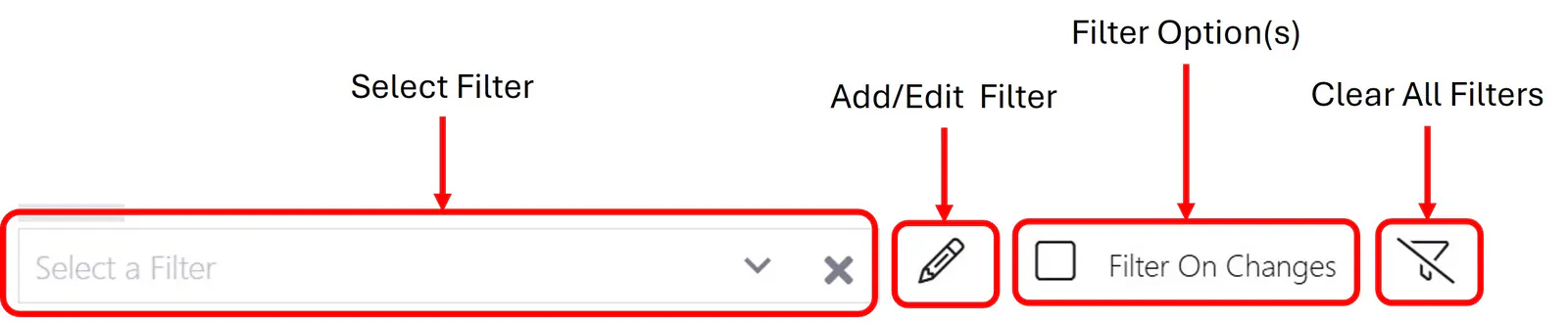
Named Filters
ResourceFirst provides named Filters on grid-style pages. When a filter is selected by the user, only those rows that meet the filter specification are displayed.
Named filters can be specified in grid page view definitions.
Grid style pages include Labor, Financial, Request, and Asset assignments, Project Data, Project Demand, and Resource Data, Capacity, and Utilization pages, and more.
Each of the primary planning objects in ResourceFirst (projects, resources, labor assignments, and financial assignments) has a unique set of fields. One or more of these fields along with a logical operator and one or more values define the filter specification. See the Adding a New Filter section below for more detail.
System administrators configure system filters in the Administration module that are available to all users. Users can create their own personal named filters.
Filter Options
There are three filter options available in different page specific combinations:
Filter on Changes – display only rows that have changed since the last Save operation
Hide Zero Rows – hide rows with no period data such as forecast demand
Color Legend Filter – show only rows with one or more period cells with the selected color.
Project Data, Resource (Data, Capacity, Skill Matrix), Asset (Data, Capacity, Utilization) Pages

Assignment (Request, Financial, Asset) Pages
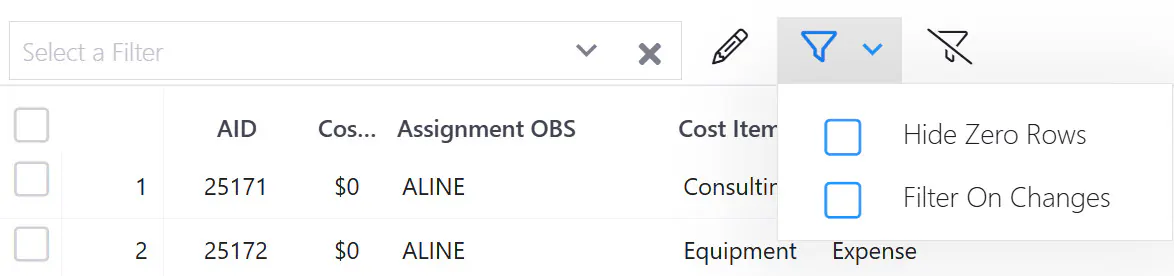
Assignment (Labor, Team) Pages
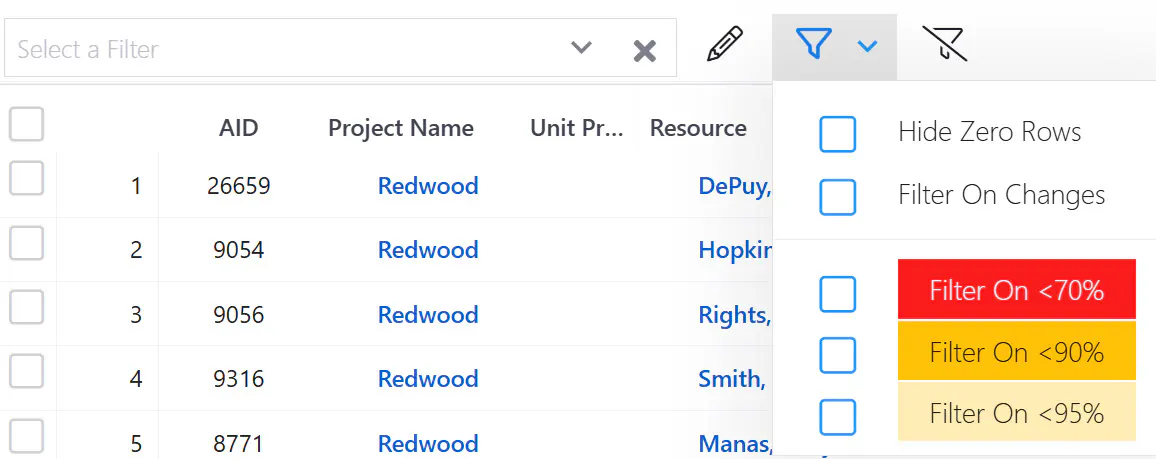
Project Demand Page
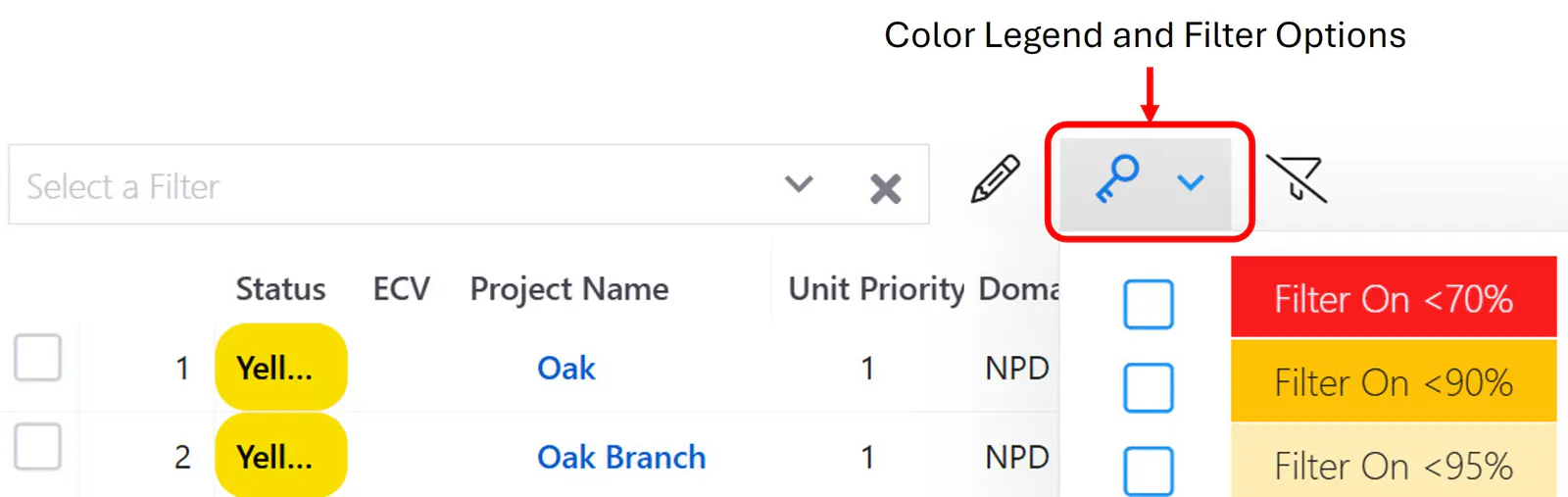
Resource Utilization Page
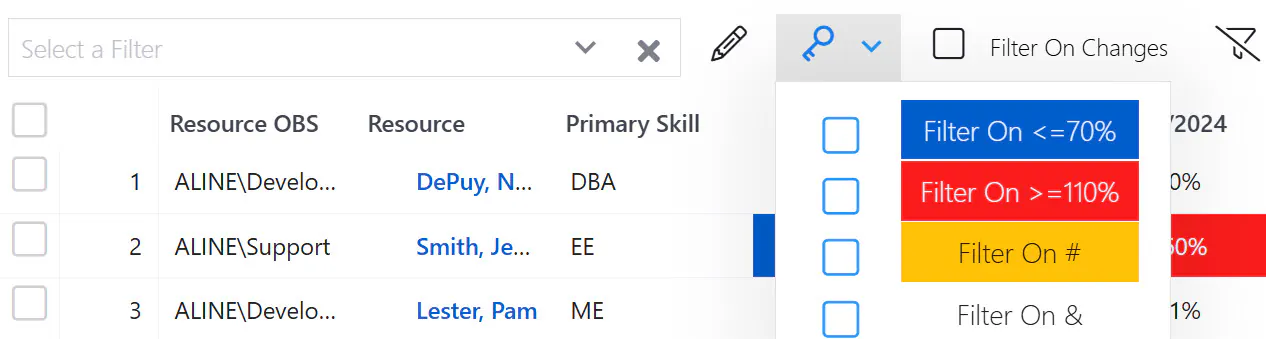
Color Legend Filter
The menu that appears when this icon is clicked defines the meaning of colors in the period data columns on the page.
It also can be used to filter records to show those that have at least one period with the selected color.
WARNING: The filter logic treats multiple selections as an AND condition; e.g. if Red and Orange are selected, the only visible rows are those with at least one Red AND one Orange cell.
Column Filters
The drop-down menu in column header cells enables filtering on the values in the column.
See article Column Controls for more detail.
How To
Adding a New Filter
Step 1. Click the pencil icon to the right of the filter selection box.

Step 2: Click the Add button (“plus” icon) to add filter fields and the condition and value you want to use as your filter criteria:
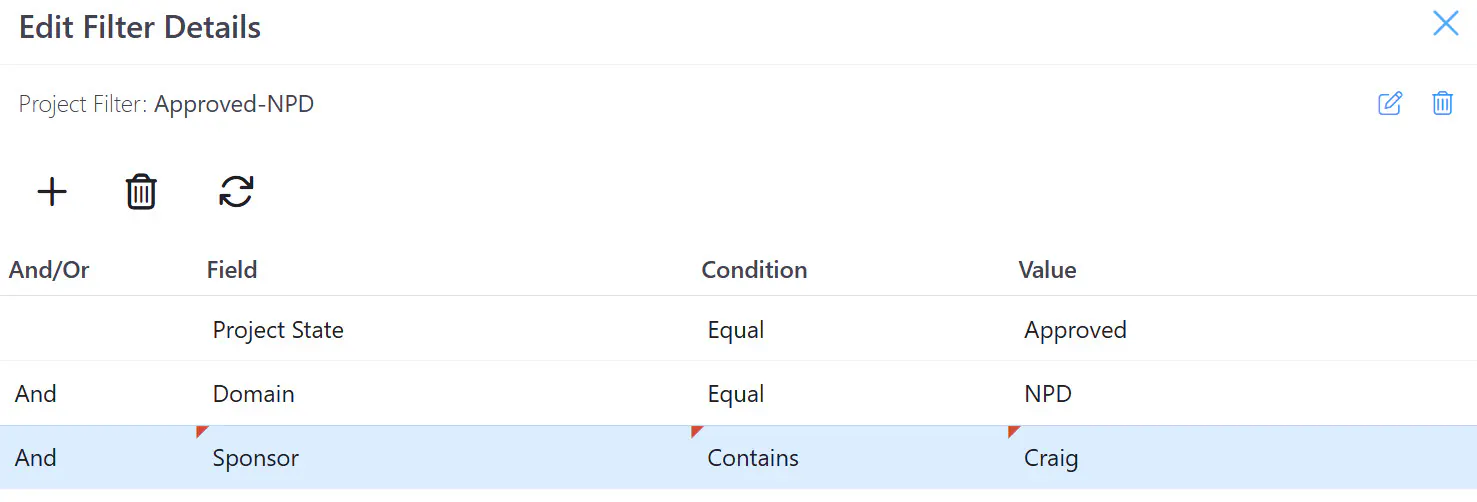
Step 3: When you are finished adding filter fields, click Save As in the bottom right of the dialog.
The Save Filter As dialog is activated. Enter a name for the filter and click Save.
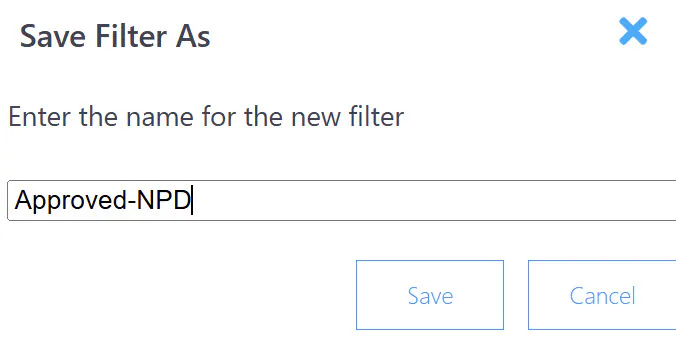
The new filter is now activated and added to the filter dropdown options.
The screenshot below shows the Project Data page with the Approved-NPD filter activated (to show only projects with Project State = “Approved” and Domain = “NPD”):
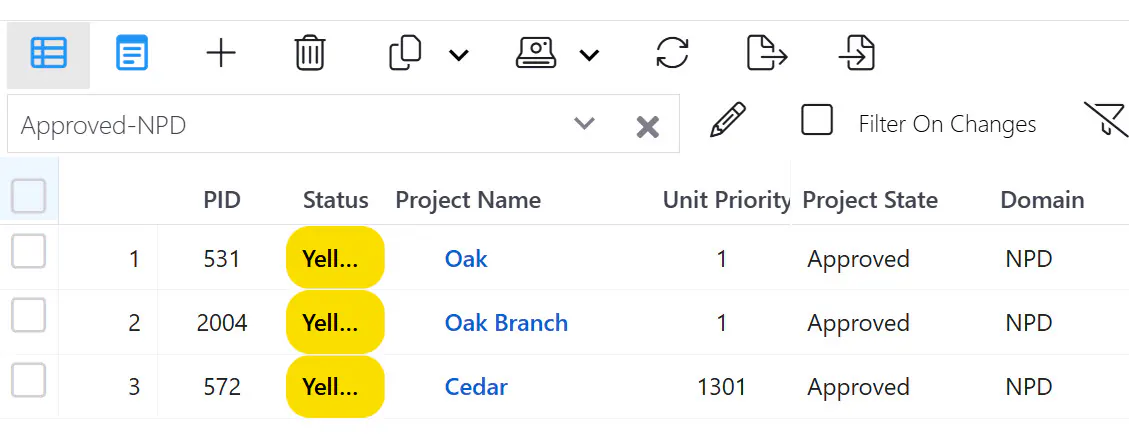
The X in the filter drop-down box clears the selected filter.
Editing a Filter
Step 1: Select the filter you want to modify.
Step 2: Click the pencil icon to the right of the filter selection box.
There is an Update button at the bottom of the dialog.

Step 3: Modify the filter specification.
Step 4: Click the Update button to save your changes.
Or click Save As… to save the modify specification as a new filter.