Labor Assignment Overview
This article serves as an introduction to labor assignments in ResourceFirst.
Overview
An assignment defines the amount of effort from a resource or a skill required by a project in every time period.
Labor assignments are viewed and managed on the following pages:
Assignment > Labor (all assignments in the data load)
Project > Detail > Labor (assignments for a specific project)
Resource > Detail > Assignment (assignments for a specific resource)
Analysis > Project-Pivot, Resource-Pivot (read only)
A user with appropriate rights can add or delete assignments and can edit attributes (fields) including period demand values.
Organization Breakdown Structure (OBS)
Resources and skills come from an organization (node) in the resource OBS (Organizational Breakdown Structure). Named resources (usually people) are members of one and only one resource OBS node.
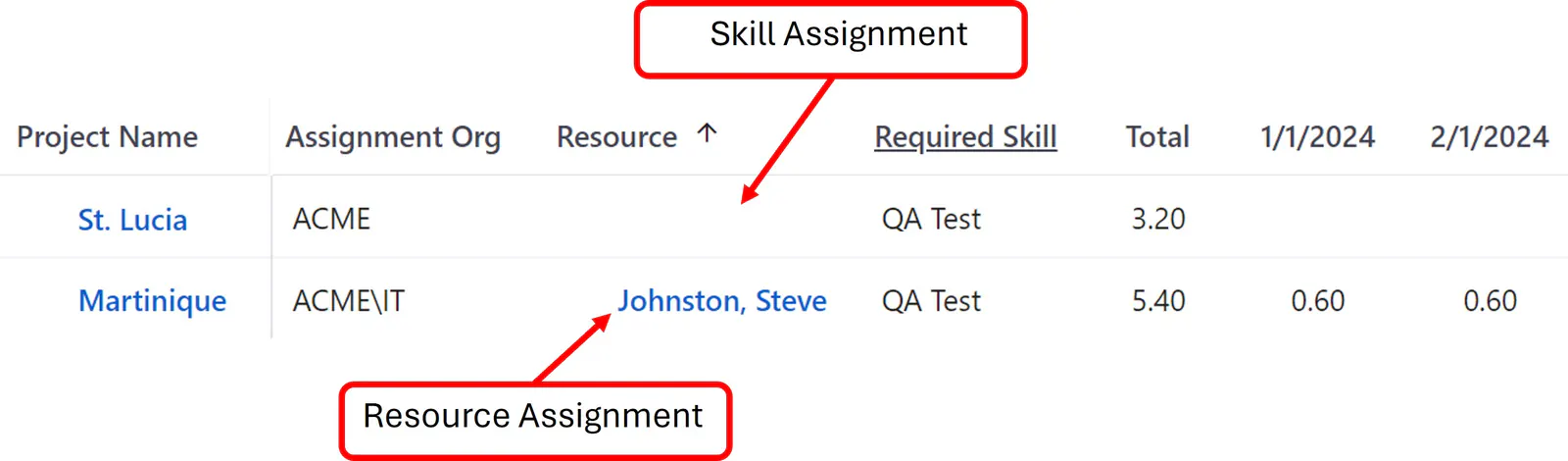
On Skill assignments, the resource OBS node defines the pool of resources from which a person with the required skill is needed. A Skill assignment is identified by the absence of a resource name.
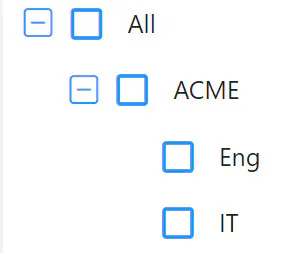
The OBS node on a skill assignment can be a “branch” node (the node has sub-nodes) – all resources in the branch that have the skill and other attributes required on the assignment could staff the assignment. In the screenshot below, ACME is a branch node, Eng and IT are “leaf” nodes.
Understanding Analysis Colors
ResourceFirst allocation analysis answers the question “How well does our supply of resources with their skills match the demand for people and skills from the projects we want to do?” For a full description of allocation analysis, see the article Allocation Analysis.
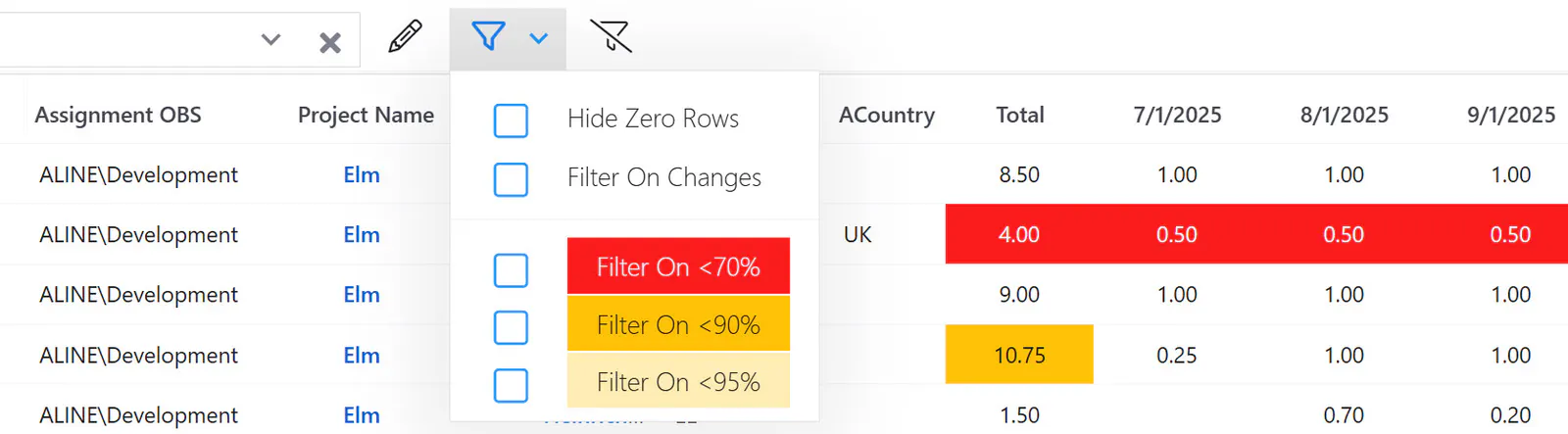
Supply is the capacity of resources and their skills. The analysis allocates that supply to assignments in a system configured order. If allocation is less than the full demand in a period, background colors are shown based on allocation thresholds.
The allocation color percent thresholds are configured by the ResourceFirst administrator. The Legend icon on assignment pages displays the configured thresholds. It is also a filter displaying only rows with the selected color.
Assignments>Labor Page Features and Capabilities
All assignments in the current data load are available on this page. The screenshot below shows the page toolbar and view/filter control bar on the Assignments>Labor page.
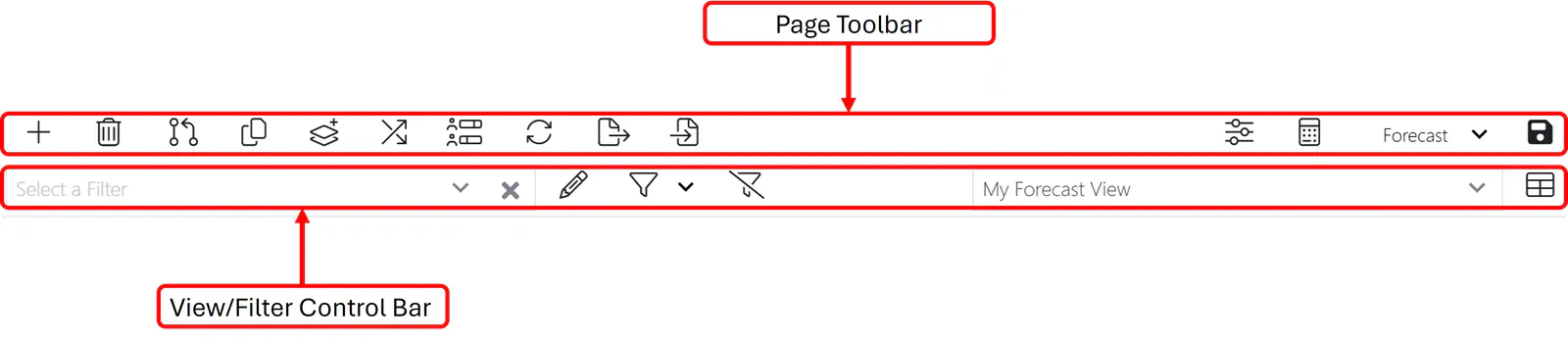
Toolbar Left
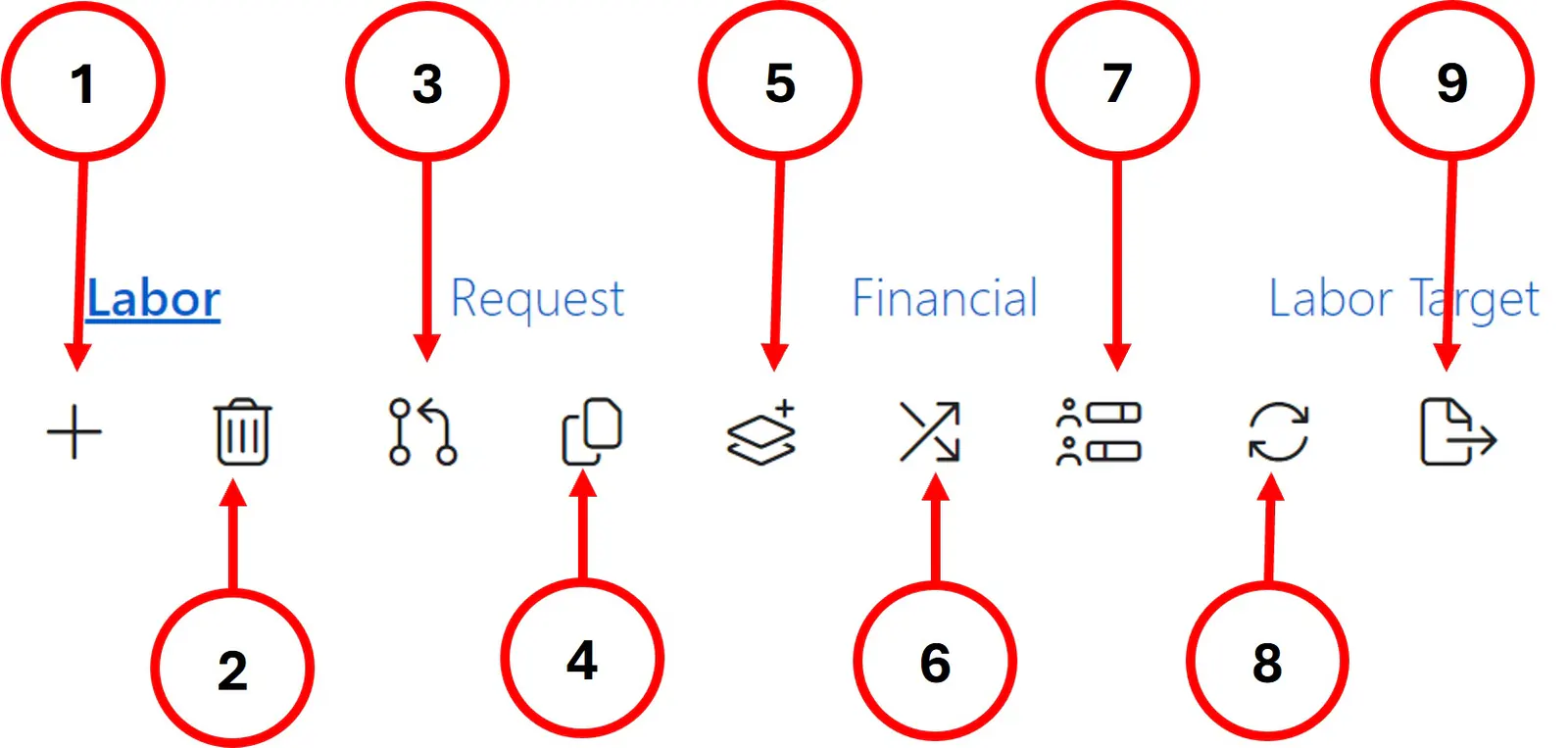
‘ 1. Add Assignment – choose assignment type and display the resource or skill assignment dialog.
‘ 2. Remove Assignment – delete all records with checked selection checkbox.
‘ 3. Requests – submit assignments as a request to the resource manager and approve open requests
‘ 4. Copy Assignment – copy all records with checked selection checkbox to a specified project.
‘ 5. Add to Scenario – add selected assignments to a project scenario
‘ 6. Convert to Skill – convert all or part of the demand on a resource assignment back to a skill assignment
‘ 7. Show Candidates – find candidate resources to replace all demand on a skill assignment or to replace shortfall or all demand on a resource assignment
‘ 8. Reload – reload data from the database for the current page
‘ 9. Export – export the visible data on the Labor page to an MS Excel .xlsx file stored in the Downloads folder.
‘ 9.1 Import – import new assignments or modifications to existing assignments
Toolbar Right
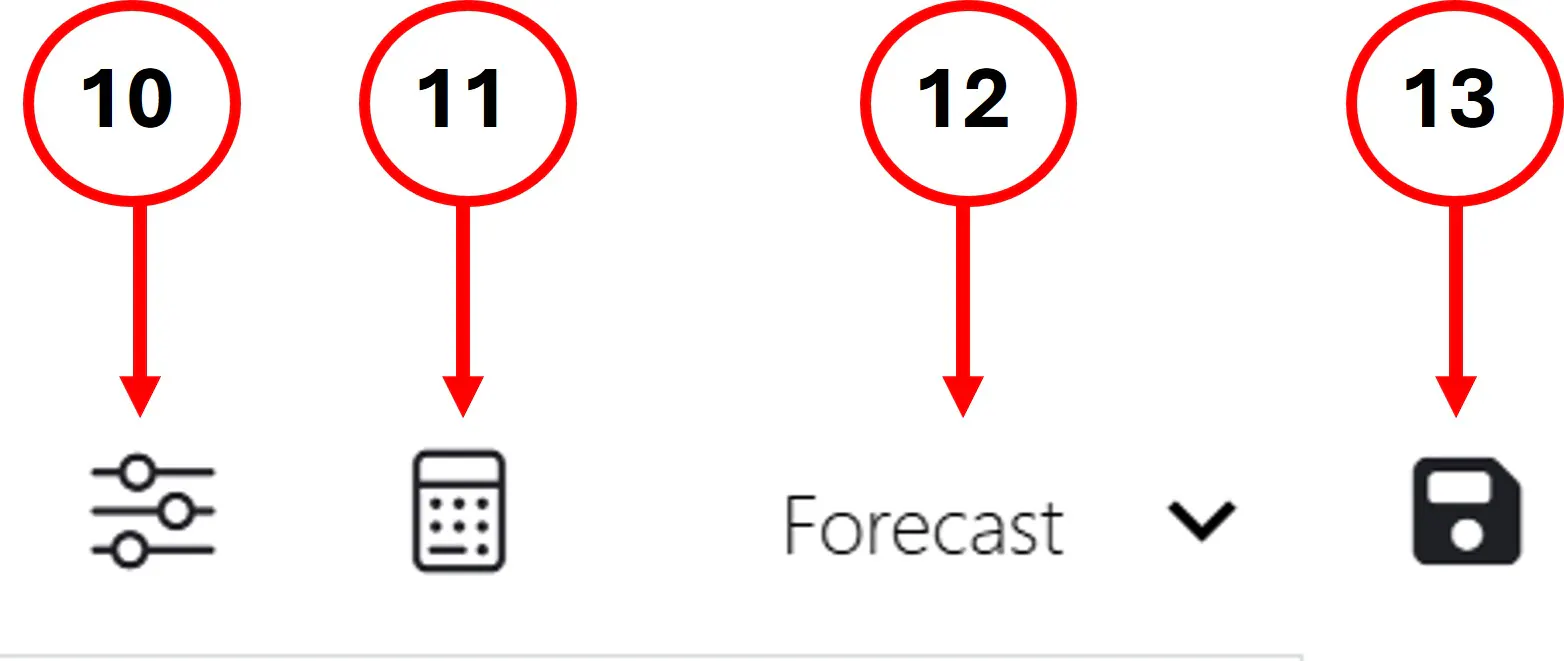
’10. Options
Header Rows – show data about the project or the resource on the selected assignment
Optimization – control allocation calculation
Filter Drop Downs by Availability – limit resource list values to those of resources who could staff the assignment
Team Assignment Mode – enable Team as well as Skill and Resource assignments
’11. Calculate Allocations – calculate supply-demand analysis and apply shortfall colors IF Options>Show Allocation Colors checkbox is checked
’12. Value Type – choose data type for display in the period grid: Forecast, Actual, Actual/Forecast, Baseline, Cost
’13. Save – save data changes to the database
View/Filter Control Bar Left

’15. Filter selection drop-down – select from a list of previously saved personal custom filter specifications.
’16. Add/Edit Filter – create/edit a custom filter specification.
’17. Special Filters –
Hide Zero Rows – hide if period total value zero (or empty).
Filter On Changes – display new and changed rows only
Color Legend/Filter – show only rows with at least one period with the selected color
’18. Clear All Filters – clear custom and all column filters; display all rows.
View/Filter Control Bar Right
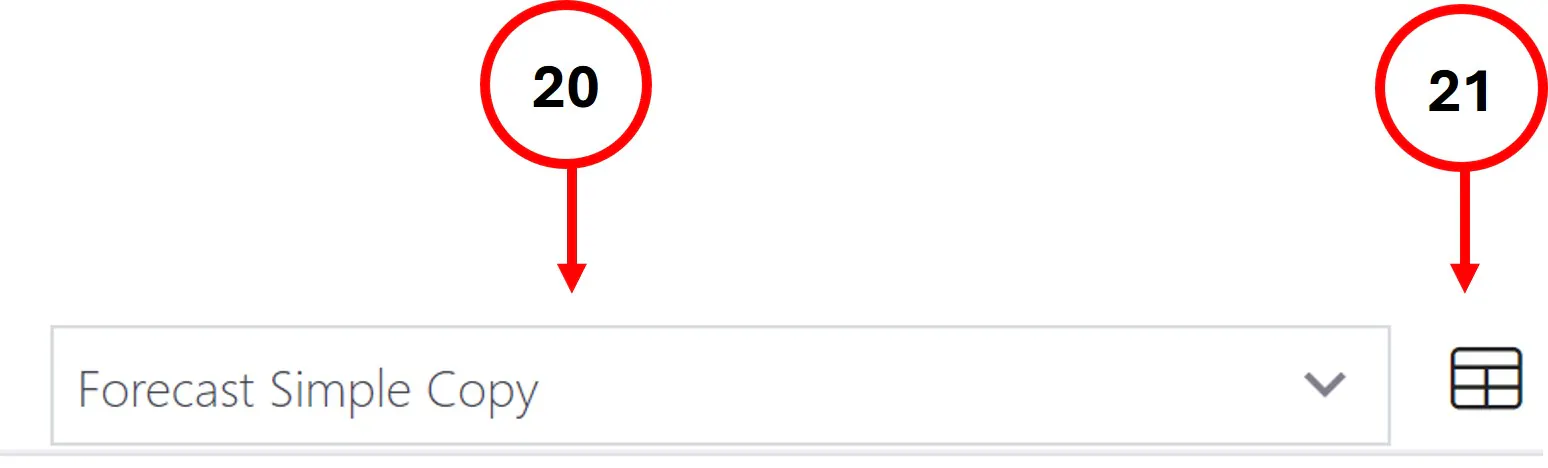
’20. View selection drop-down – select system or personal views
’21. Edit Views – edit the currently selected view and update it or save as a new personal view