Entering Labor Actuals on Assignment Pages
This article explains how to view and enter labor actuals on the Labor Assignments page.
Overview
The best way to capture Actuals for each assignment is for individual people to record their actual time spent (on a weekly or daily basis), either via ResourceFirst Timesheets or by an interface to some other time tracking system.
However, resource managers can see and enter actuals directly on the Labor Assignments page.
Note: Actuals cannot be entered for Team Assignments, only for individual team member assignments.
How To
Manual Method
Step 1: Go to an Assignments page.
Step 2: Click the value type drop down menu and select Actual.
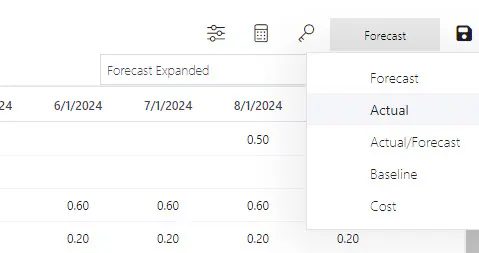
The labor assignments page now shows Actuals (if any).
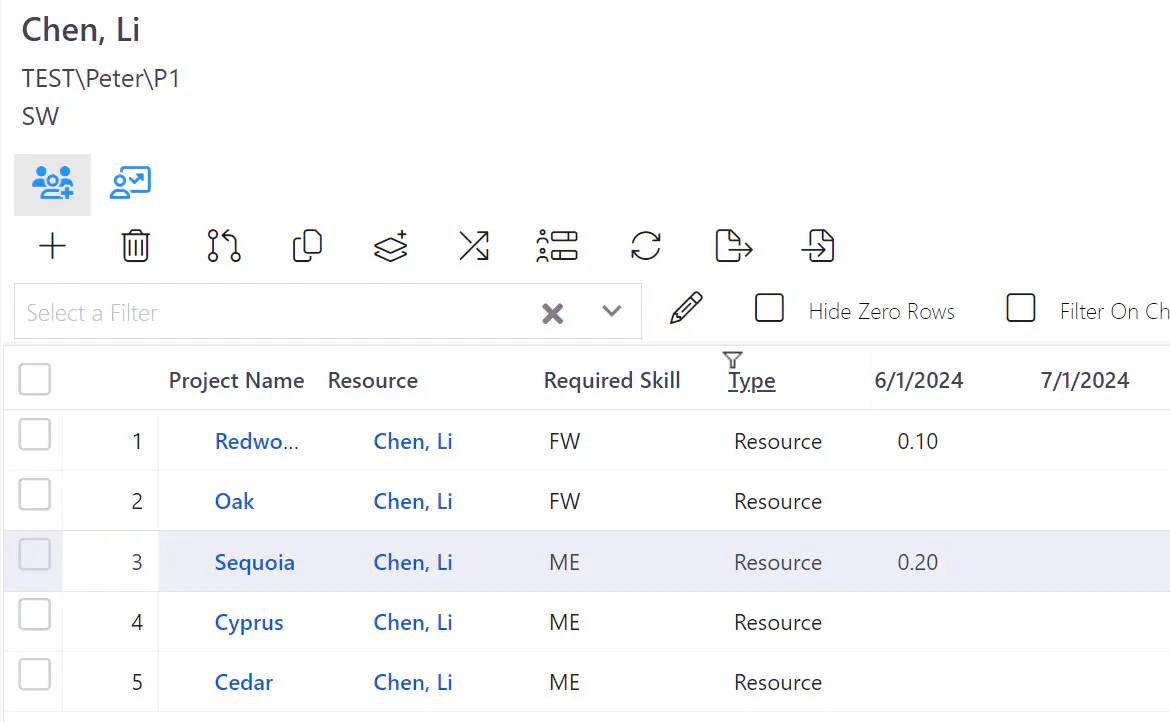
Step 3: Enter Actual values for resource and/or skill assignments
[Note: Actuals cannot be entered for inactive resources.]
Step 3: Click the Save button.
Import Method
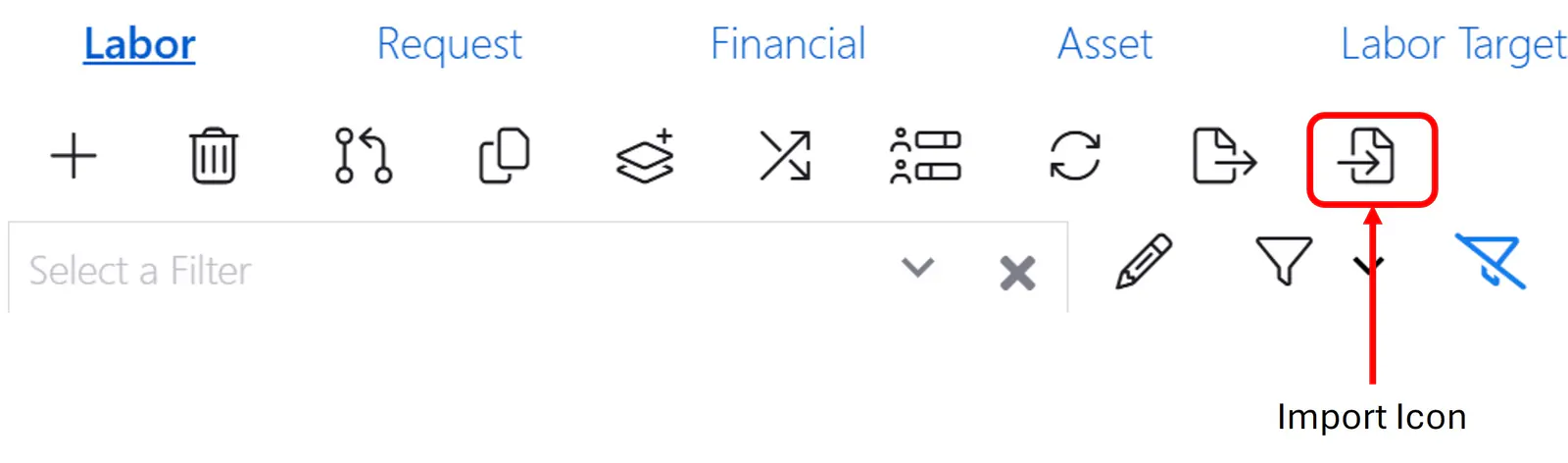
Step 1: Click the Import icon in the page toolbar.
Step 2: Browse to select the import file.
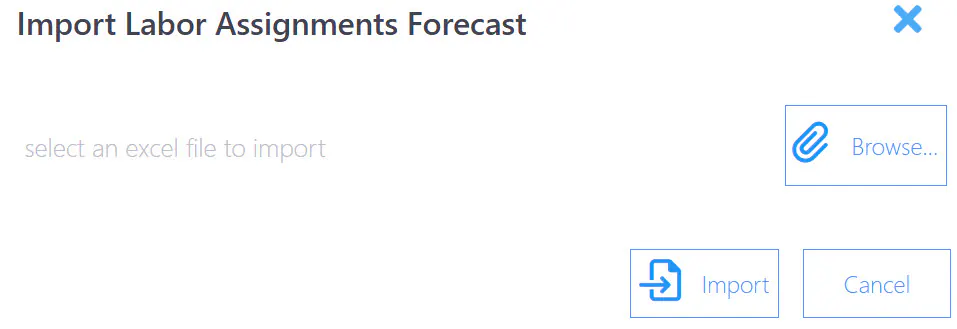
Step 3: Click the Import button.
Step 4. Verify the correctness of the import.
Step 5. Click the Save icon.
See the article Export and Import Data for more detail.