Administering Views
This article shows how to add and maintain Views in the Administration area.
Overview
Views in ResourceFirst are the spreadsheet-type grids that appear on some pages. System administrators can create and customize system views that are available for all users and for partition subsets of users.
The attributes of fields (columns) in a system view can be modified by users in their instance of the view. This means that modifications to system views are NOT propagated to existing users.
How To
Create and Modify System Views
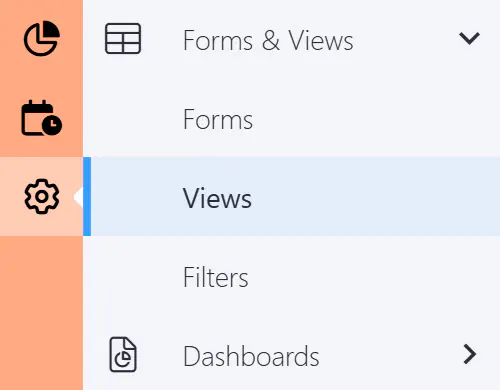
Step 1: Select the Forms and Views option in the Administration area, then select Views.
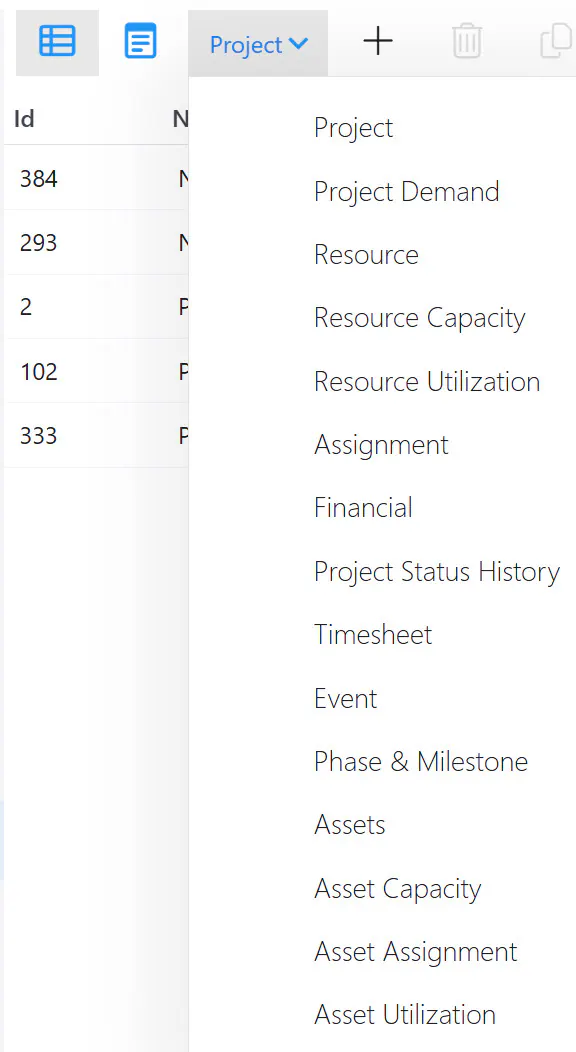
Step 2: Select the page type for which you want to create a view specification.
Project Views Grid
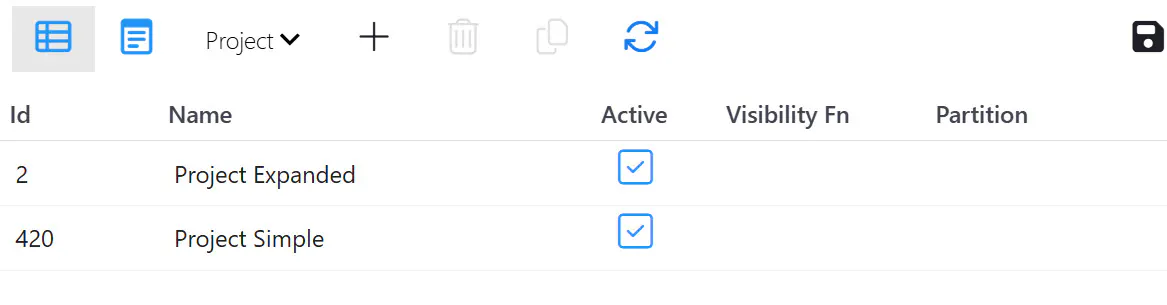
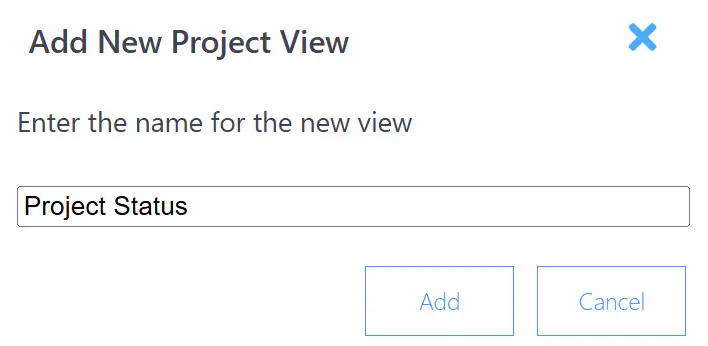
Step 3: Click the Add (“+”) icon and provide the new view name.
Step 4: Click the Detail mode icon and select the view to be defined or modified in the left pane.
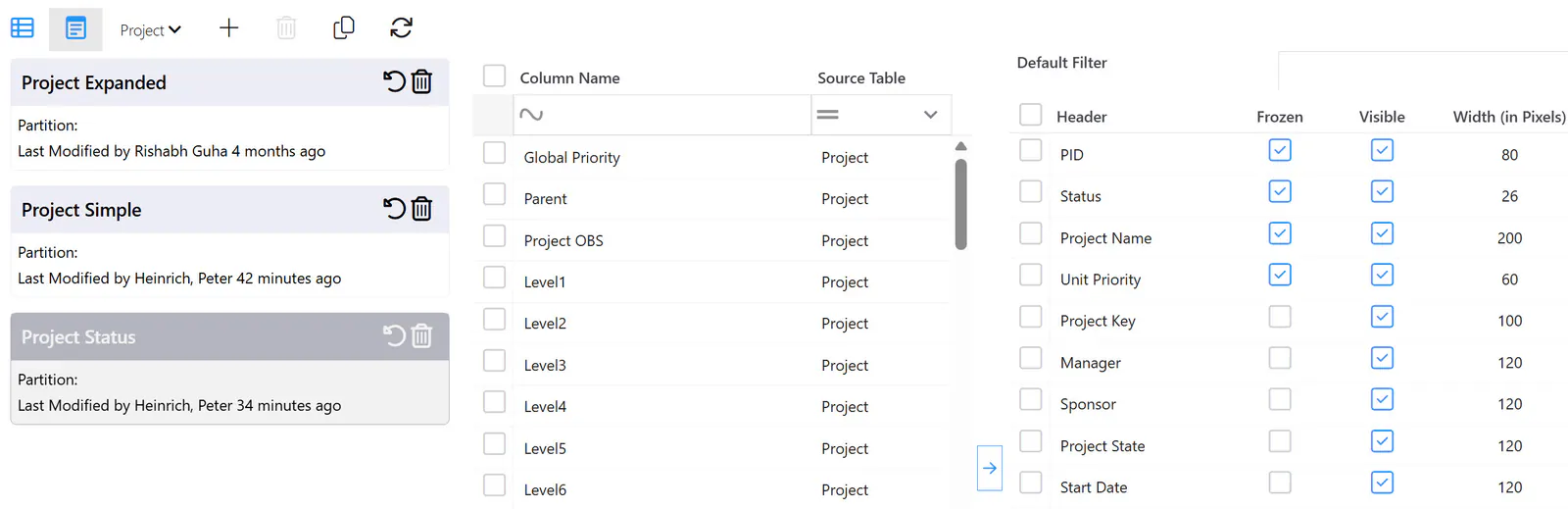
Step 5: Define/modify the view specification as described in the How To section of the User Defined Views article.
Special Notes:
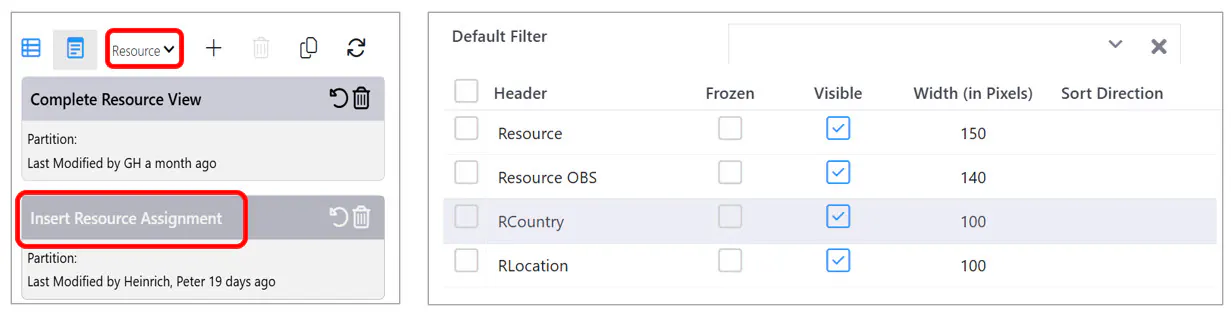
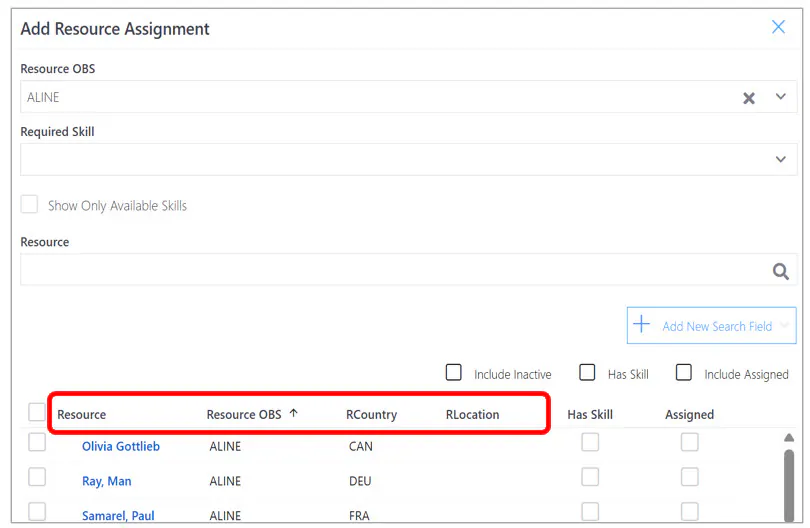
The “Insert Resource Assignment” view under the Resource view type, defines which fields appear in the header of the resource section in the Add Resource Assignment dialog.
The “PDW Timesheet Default” view must exist in the Timesheets view type in order for Timesheets to work.
Delete a view
Step 1: Select Grid mode.
Step 2: Click on a view and then click the delete  button to delete the view.
The delete takes effect immediately without clicking the Save icon.