Candidate Resources to Replace Assignment Demand
This article explains how to replace shortfall or demand on skill or resource assignments with remaining or full capacity of resources who meet assignment requirements.
Go to the How To section for the simple steps to replace shortfall or demand on an assignment with a resource who has availability to staff it.
Overview
Candidate Resources answers the question, “What resources can satisfy some or all of the needs of the selected target assignment?”
This feature is available on all labor assignment pages:
Assignment>Labor,
Project>Detail>Labor, and
Resource>Detail>Labor.
The assignment that will have shortfall or demand replaced is called the target.
The resources that can provide remaining or all capacity to the target are called the demand source and are candidates.
It is possible to select more than one candidate resource to replace demand on the selected target assignment.
The Simple Case of Candidate Resources
Select a cell anywhere in the target assignment row and click the Candidate Resources icon.
The candidates pane appears with all resources who
have the Required Skill ( either primary or secondary),
are members of the organization (OBS node) specified in the target assignment,
who meet any other target assignment requirements (such as Country or Location), AND
who have some unused capacity in the periods where there is demand to be replaced.
If target is a Resource assignment, the default Replace option is Shortfall.
If target is a Skill assignment, the default Replace option is All Demand (since skill demand IS shortfall).
Select a candidate and click the Replace button.
A new assignment is created for the selected resource on the target assignment project and the amount of replacement availability is removed from the target assignment demand.
If the target need is fully satisfied, the candidates pane closes automatically.
If any target need remains, the replace process recalculates target need and candidate availability.
We recommend that you replace with one candidate at a time.
Important Note: Replacement of target demand applies ONLY in the current data load date range. Demand in periods after the current data load date range is unaffected by candidate replacement.
The Candidates Pane
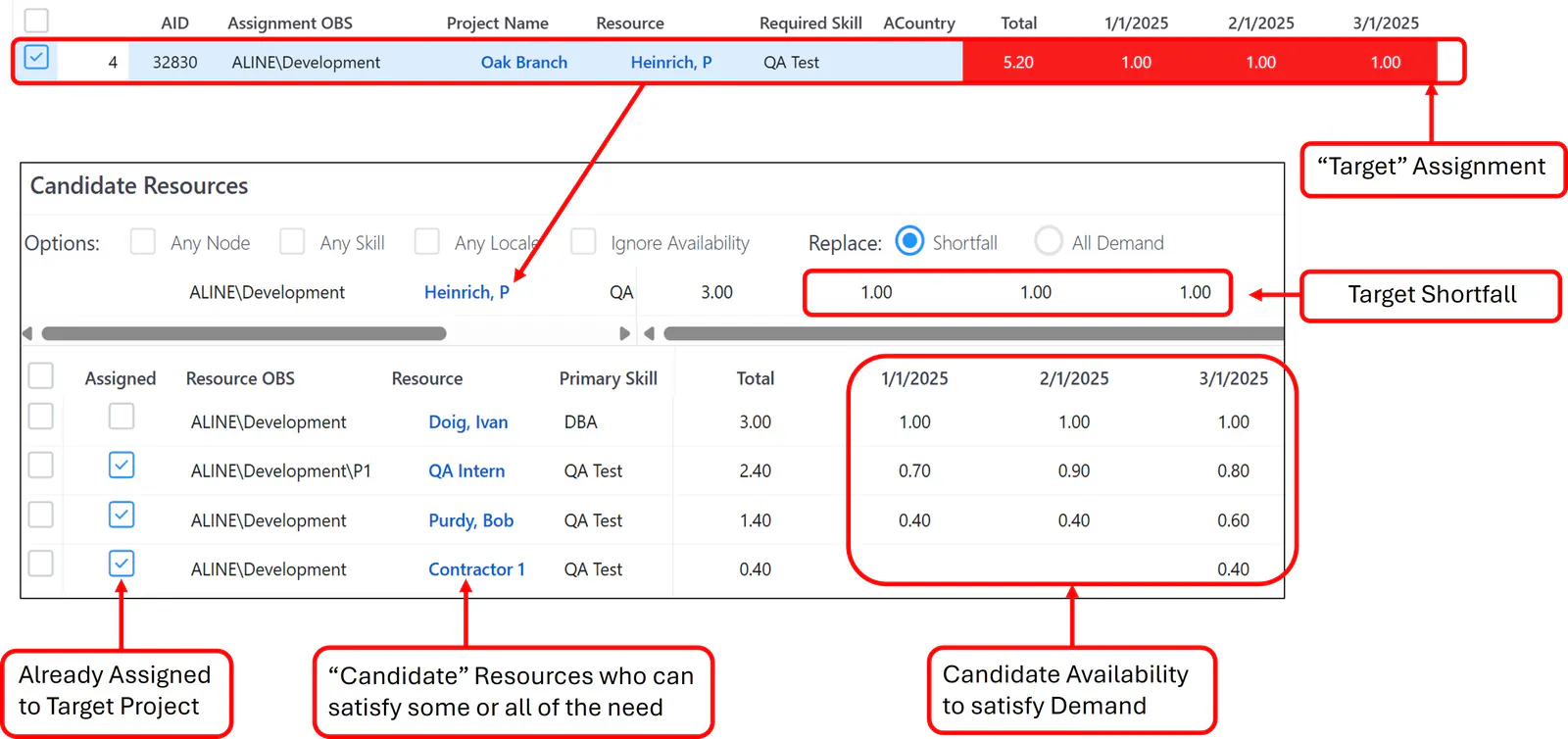
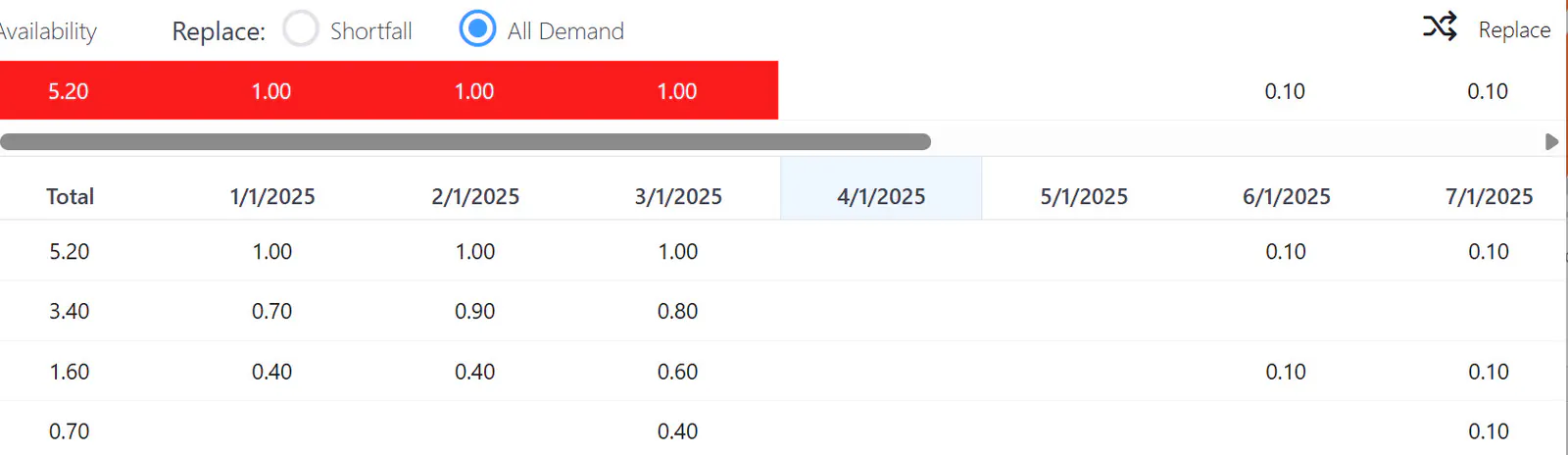
Notice in the screenshots below that the total availability in the candidates area shows the extent to which each candidate can meet the total need in the target row.
Target Resource Assignment – Shortfall Case
All Demand Case
Candidate Search Options
The target assignment has five attributes that are used to expand or narrow the search for replacement candidates:
Assignment (resource) OBS node
Required skill
Locale: Country and Location
Availability (remaining capacity) or full capacity
Target period shortfall or demand
The default is to match assignment values (if any) to resources with matching values.
For example, if the target assignment has values in the Country and Location fields, only resources with matching country and location values are presented; if the assignment has no values in those fields, those fields are ignored in the search for candidates.
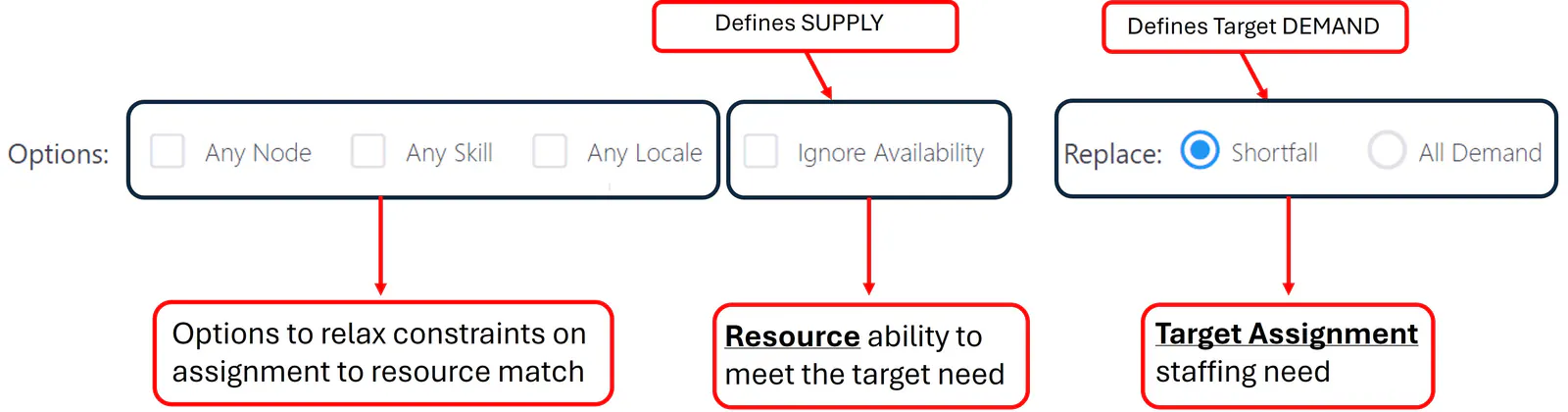
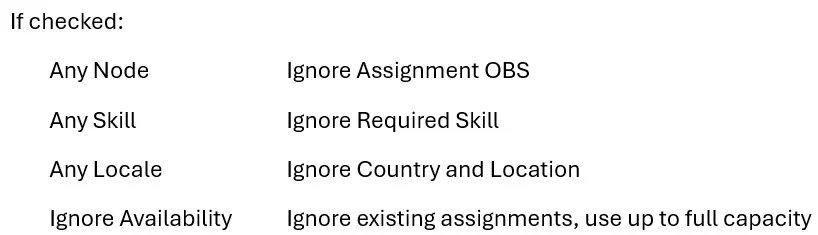
The four checkboxes in the Candidates pane are essentially “ignore” commands.
Candidate Resource Availability
ResourceFirst always calculates allocation of resource capacity to named resource assignments. This calculation defines how much remaining capacity resources have in every time period.
Candidate availability is a function of target assignment need (demand or shortfall in each period) and the amount of candidate remaining capacity in each period that has target need.
Candidate periods are empty if there is no need or if there is no remaining capacity. Candidates are NOT listed if there is no availability to satisfy target needs.
In the screenshot below, assume that all resources have total capacity of 1 FTE per period. In February, two candidates have availability of 1 FTE which means they have no resource assignment demand that month.
The other candidates in that month have availability less than 1, so they must have other assignments that consume some, but not all, of their total capacity in February.
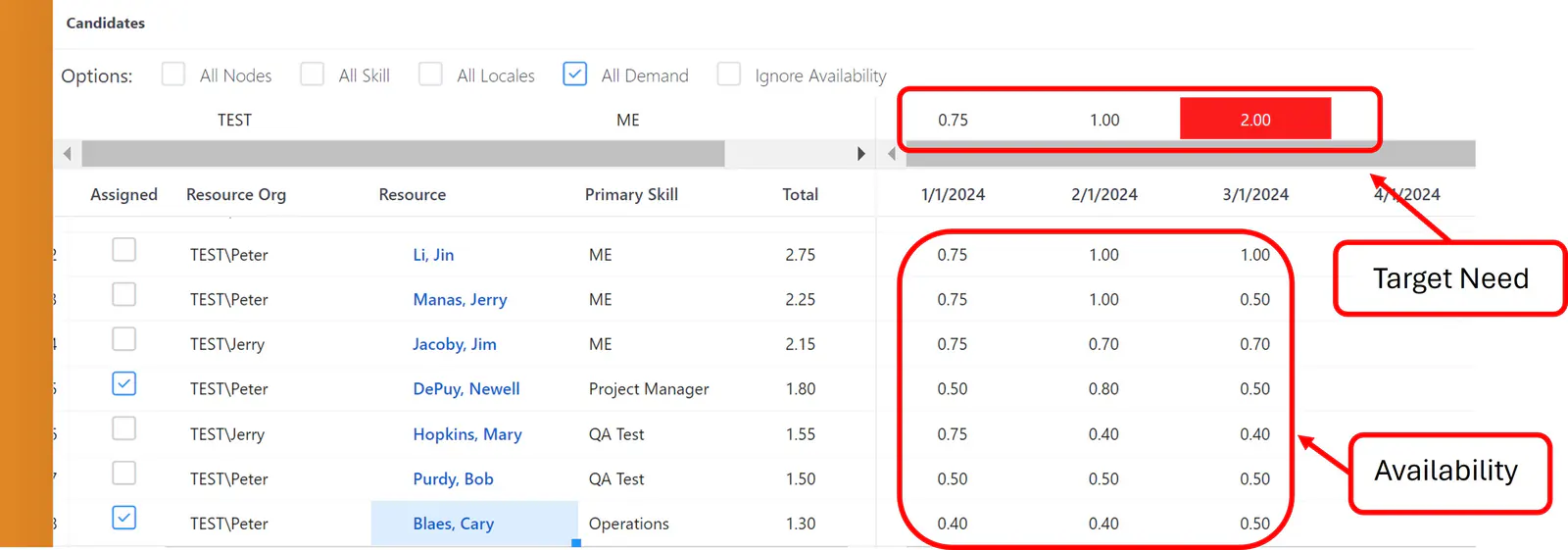
Important: Values in periods in the candidate pane are editable. This means you can tailor the availability to target precisely the periods you want to replace.
- Clear availability in periods you do NOT want replaced. For example, you
may not want toshould not replace demand in past periods. - Change values where you want less (or more) than the current availability.
Note: There is no restriction on the candidate values you enter. If you enter 5 (FTE) in a period and click the Replace button, that amount will be on the new replacement assignment.
Multi-candidate Replacement
Demand on skill assignments may be for multiple FTEs; e.g. 2, 3, or 4 Electrical Engineers.
In this case, select one candidate at a time to replace. Target need and candidate availability are recalculated with each replace operation.
Note: Multi-candidate replace can result in more demand on the target project than the original demand.
For example, if the target need is .5 and you select four candidates each of whom has .5, the result will be demand for 2 replacing target demand for .5.
How To
Use the following steps to select named resource candidates to replace an assignment:
Step 1: Select a cell or the selection checkbox at the left in the target assignment row.
Step 2: Click the Candidate Resources icon in the page toolbar.

Step 3: (Optional) Select checkbox options at the top of the Candidates pane.
Use checkboxes to modify the candidate pool as needed.
Step 4: (Optional) Change amount of demand on the target assignment that will be replaced.
Replace Shortfall or All Demand.
Step 5: Select checkboxes to the left of one candidate resource.
Step 6: (Optional) Modify availability values in the candidate grid.
Step 7: Click the Replace button.
The demand on the target assignment is reduced by the sum of candidate values.
New assignment rows are created with the candidate resource and values.
If the Assignment page has not been sorted since the beginning of the session, the new row appears below the target assignment.
If the target demand is fully satisfied the candidates pane is automatically closed.
Step 8: (optional) Continue steps 5-7 until the target need is fully satisfied or close the candidate pane with the X in the upper right corner of the pane.
If the target need has not been fully satisfied the Candidate pane remains open with target need and candidate availability recalculated to reflect the previous replacement.
Step 9: Click the Save icon to save the replacement changes to the database.
Tips
- To focus on the target and results, do candidate Resources on the Project>Data-Detail>Labor page where target and resulting assignments are for a defined project.
On the global Assignments>Labor page, filter on project and Required Skill of the assignment before clicking the Candidates icon. Then when you click the Replace button the target and replacement assignments will be visible. - An alternative is to check the Filter on Changes checkbox. This will display target and replacement assignments only.