Posting a Scenario
This article describes how to post a scenario to the “live” current plan.
Overview
When a scenario has been approved, you “Post” the projects in it to their source projects, i.e. to the current plan. Post initiates the following actions:
Source project data field values are replaced by the scenario project data field values.
The source ID (PID), Project Name, and Project Key fields are NOT replaced.
NOTE: Changes made to source project data fields AFTER THE SCENARIO WAS CREATED are overwritten by post scenario!
Period forecast demand values on linked* assignments replace the values on the source assignments.
Assignment field values (e.g. Required Skill, Country, . . .) are NOT replaced by the scenario assignment values.
*Linked assignments include all assignments to the source project present at the time the scenario was created AND all assignments added to the scenario project with the Add to Scenario icon on assignment pages.
New labor and financial assignments created on scenario projects are copied to source projects including fields and period forecast demand data.
Assignments added to source projects after scenario creation are unaffected by the Post.
Note: Not present in scenario projects: Request assignments, Actual values, Baselines, project detail (e.g. Events) other than asset, labor and financial assignments.
How To: Post Scenario
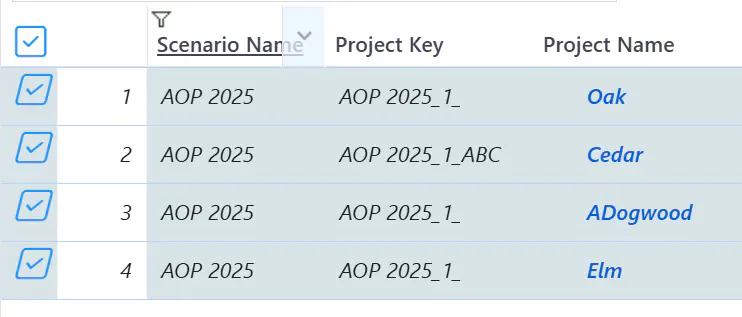
Step 1: Check the selection checkbox on each of the projects in the scenario.
Use the following method to post an entire, multi-project scenario,:
- Expose the Scenario Name column in the view.
- Filter on the scenario name in the Scenario Name column.
- Check the select all checkbox in the header of the leftmost column on Project Data.
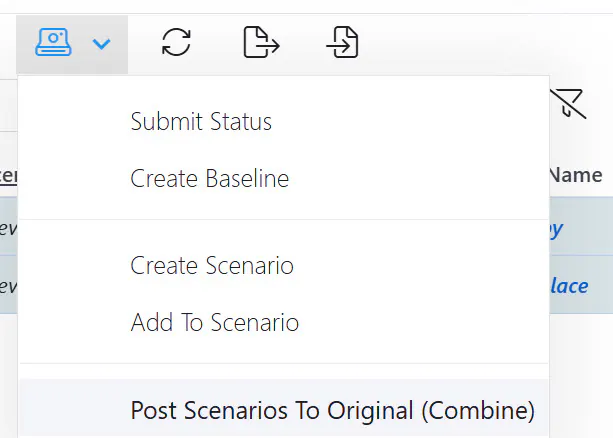
Step 2: Click the Baseline, Status & Scenario icon in the toolbar and select the Post Scenarios to Original menu item.
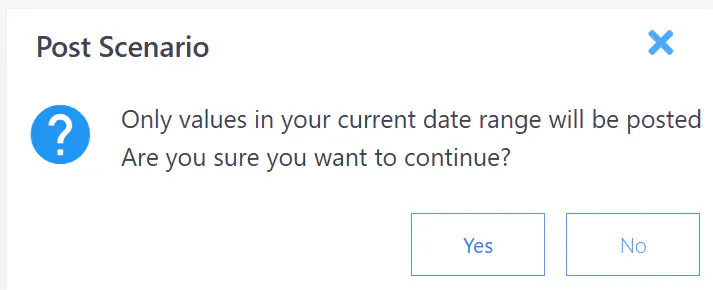
Step 3: Click the Yes button on the Post confirmation message.
Results of Post
We created a scenario from source project Aspen and made some changes to Project Data and to labor assignments.

Aspen Assignments

Notice that to clear period values in the source assignment when you post, you must enter 0 values in the scenario.
Empty values in the scenario mean “ignore the cell”.

Assignments after planning and before posting
Notice the scenario ORIGINAL AID is the same as the source AID.


We post the scenario and get these results.
The project data values from the scenario have been copied into the source project fields (changes marked by the little red triangles in the upper left corner of the cells).

Period data assignment values in the scenario have been copied into the source assignment records (rows).
