Timesheet Compliance Page
This article describes the uses and behavior of the timesheet Compliance page.
Overview
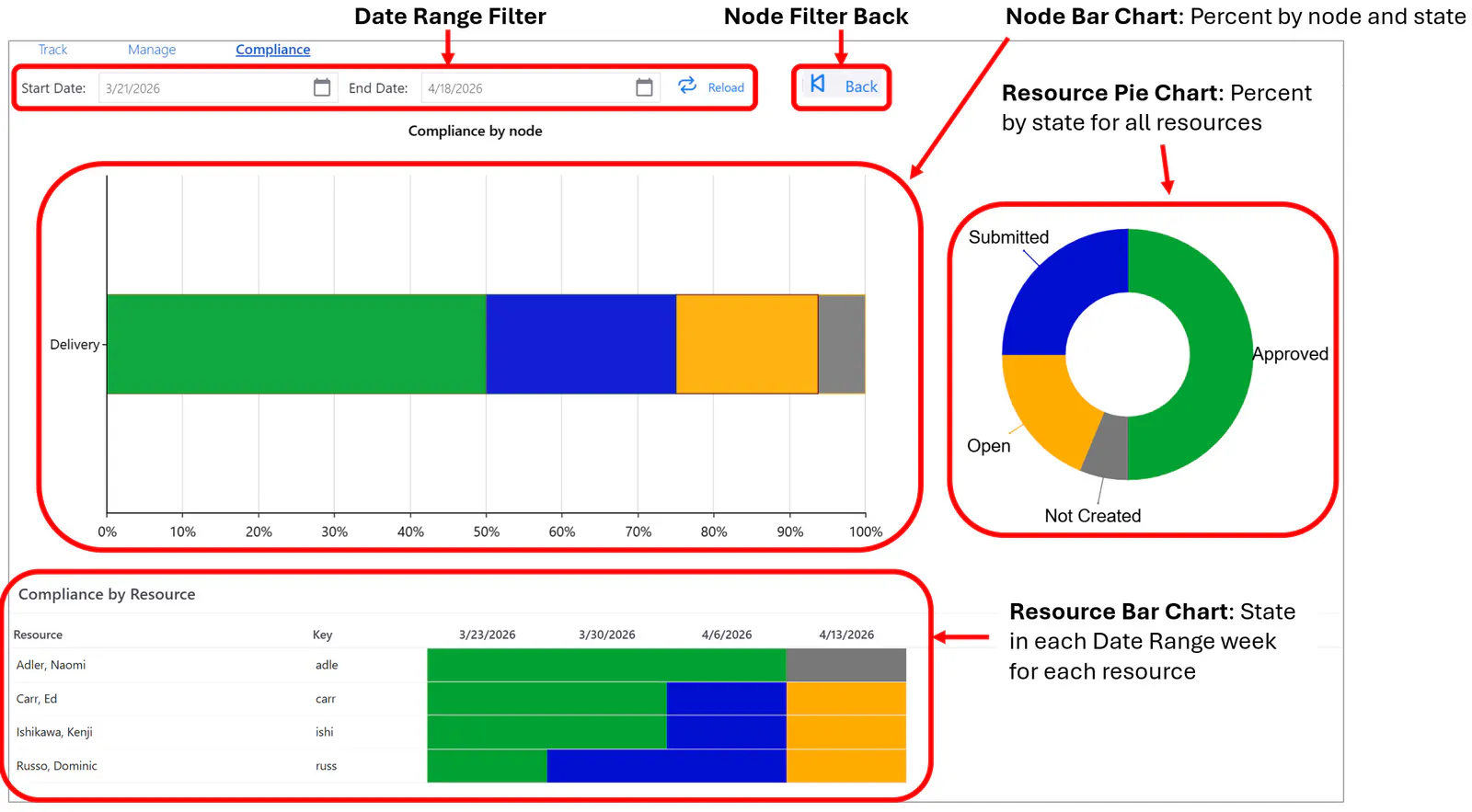
The Compliance page is a read-only report on the state of all timesheets in nodes for which the user has the right of timesheet approval. It provides three views of the current status of timesheet compliance by all the resources and approvers in those nodes:
- All resource state pie chart – percent of all timesheets in each timesheet state (for the visible resources)
- Node state bar chart – percent of all timesheets in each timesheet state by node
- Individual resource state bar chart – for each resource, the state of the timesheet in each weekly period in the specified date range. This includes only those resources configured as time-tracking users (login id is present in the Resource Key field).
The color coded timesheet states are:.
Not Created – Gray: User has not created (opened) a timesheet for the week period.
Open – Orange: User has created a timesheet for the week, but not yet submitted it.
Submitted – Blue: User has submitted a timesheet for the week.
Approved – Green: Manager/approver has approved the timesheet.
Rejected – Red: Manager/approver has rejected the timesheet.
Adjusted – Dark Green: User has modified the values in a previously approved timesheet but not yet submitted it.
The Compliance page menu is visible only for users with Timesheet approval rights (T1) to one or more resource nodes. Other users do not have the menu available.
Page Layout
User Actions Available
The Compliance page is read-only, data cannot be modified. The following user actions are available:
- Hover to display the percent of timesheets in each state – available only in the node bar chart and the total resource pie chart.
- Set the date range for counting and displaying the weekly state of timesheets for each time-tracking resource/user.
- Drill-down filter on a node in the node bar chart (and navigate back).
- Drill-down filter on a resource in the resource bar chart.
Access the Compliance Page
Select the Time Tracking Icon  In the Main Menu at the left of the screen. Then select the Compliance page menu.
Date Range
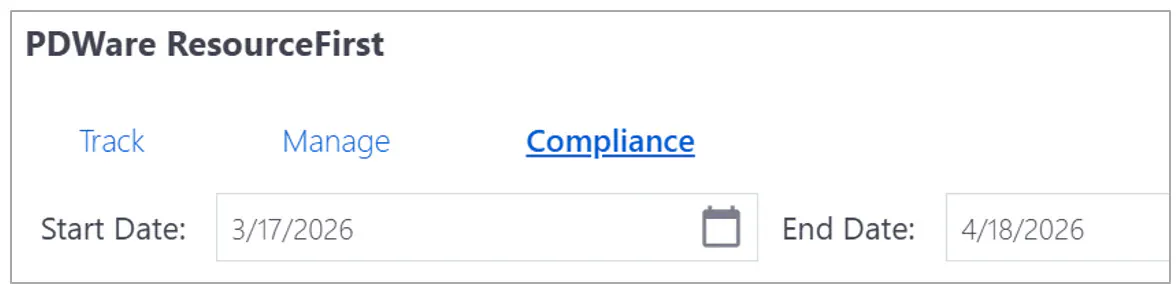
Reload Button – Displays the result of any change to date range start or end dates.

Start Date – Any start date from Tuesday of week W to the Monday of week W +1 displays the week of W +1.
End Date – Any end date from Wednesday of week W to the following Tuesday displays the week W + 1.
Node Bar Chart and Drill-Down
The nodes that appear on the Compliance page depend on the users Timesheet rights and on the presence in those nodes of time-tracking resources.
The node bar chart includes all nodes to which the user has time tracking rights (T1) and that have time-tracking resources.
If the user has time-tracking rights to one node only, that node is the only node displayed on initial access to the page. If any node has sub-nodes, the sub-nodes are displayed when the user performs a left-mouse-click drill-down on a node bar. A click on the Back button goes back up one node level on the resource OBS tree.
If the user has time-tracking rights to nodes in different branches of the resource OBS tree, the root node of each branch is displayed on initial access to the page. Left-click drill-down displays only the user accessible sub-nodes.
For example, a user with time-tracking rights to Arch and Eng in the resource OBS tree in the diagram below will initially see two node bars, ACME and Brava.
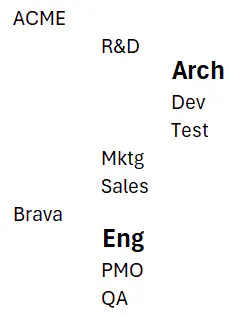
Because the user does not have time-tracking rights to ACME\Mktg or \Sales, left-click on bar ACME displays R&D only. Left-click on node bar R&D displays a node bar for Arch only.
Left-click on bar Brava displays a node bar for ENG only.
Resource Bar Chart and Drill-Down
Drill-down on the resource bar chart requires a double-click as opposed to the single left-click on the node bar chart.
Drill-down on a resource bar in the resource bar chat activates the Manage page with a filter showing all timesheets for that resource.