Convert Demand or Shortfall to Skill
This article explains how to convert existing Resource assignments to Skill assignments.
Overview
There may be several situations where it is appropriate to convert all or part of the demand for a named resource back to a skill assignment:
- Total demand in some or all periods exceeds resource capacity
- The resource is transferring to another organization or leaving the company altogether
- The resource is needed on some other work and the manager does not yet know who to assign as a replacement.
There are two convert options,
Shortfall Only – transfer all demand the resource cannot supply to a new skill assignment
All Demand – transfer all demand in all current data load periods to a new skill assignment
Important Note re Period Date Range
The convert commands apply to ALL and ONLY the periods in the current Data Filters period range.
This means you must use the period parameters in the Data Filters dialog to target precisely the periods you want to affect if not all periods. In most cases, demand before the current date or period should NOT be converted or replaced.
For example, if a resource assignment has demand in past AND in future periods and the current data load includes all those periods, you should NOT convert all demand. In this case you would reload data starting with the period where the resource demand is to be moved to a skill assignment
The period range considerations are not as relevant in the Shortfall Only case although the logic is the same. This case just transfers shortfall to the new skill assignment during the current periods. The operation can be repeated in subsequent periods to handle shortfall after the current date range.
How to
Convert All Demand
Step 1: Review date range implications.
Step 2: Select the target assignment row(s).

Step 3: Click the Convert to Skill icon in the page toolbar.
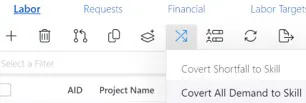
Step 4: Select Convert All Demand to Skill.

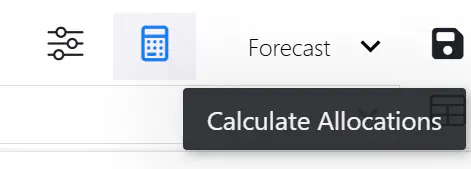
Step 5: Click the Calculate Allocations icon in the page toolbar.
This calculates the Total column for changed assignments.
Step 6: Click the Save icon to save your changes.
Convert Shortfall Only
Step 1: Select the target assignment row(s).
Note: All demand on a skill assignment is shortfall by definition; only resource assignments have shortfall for purposes of Convert to Skill or Candidates-Replace. If this menu option is applied to skill assignments, all demand will be converted.
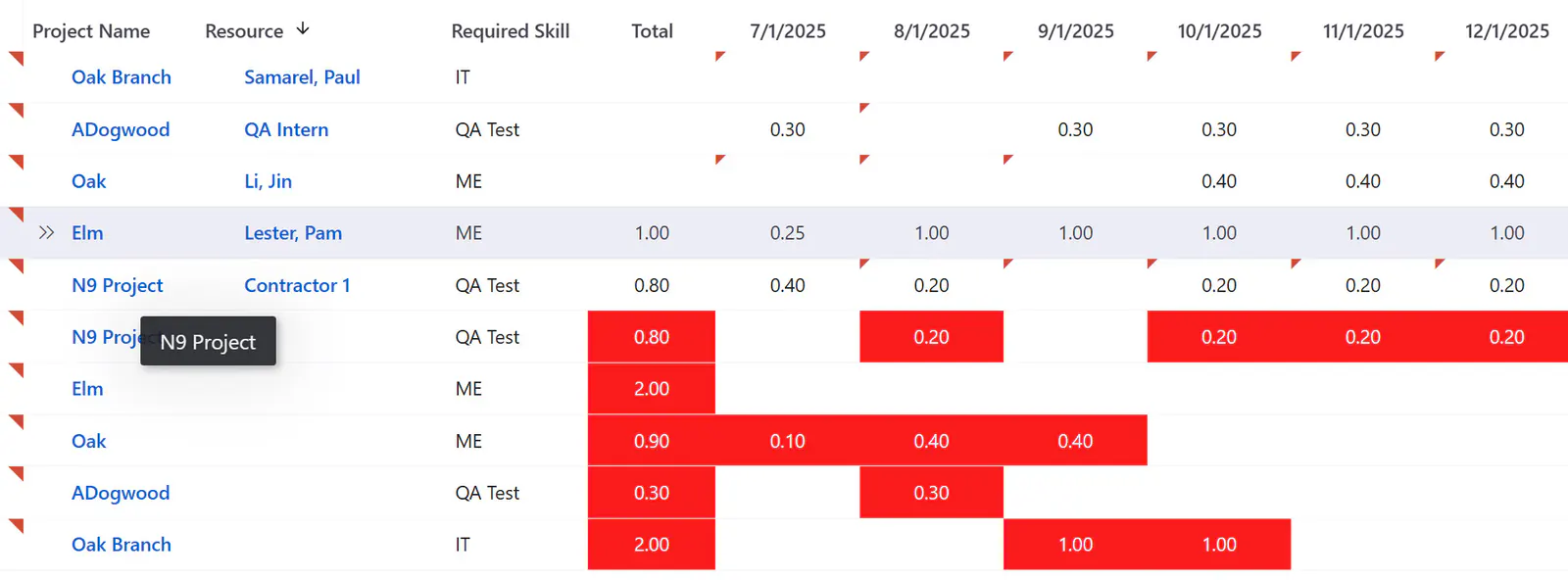
Select one or more rows that have shortfall (color highlighting on period cells).

Step 2. Click the Convert to Skill icon in the page toolbar.
Step 3: Select Convert Shortfall to Skill.
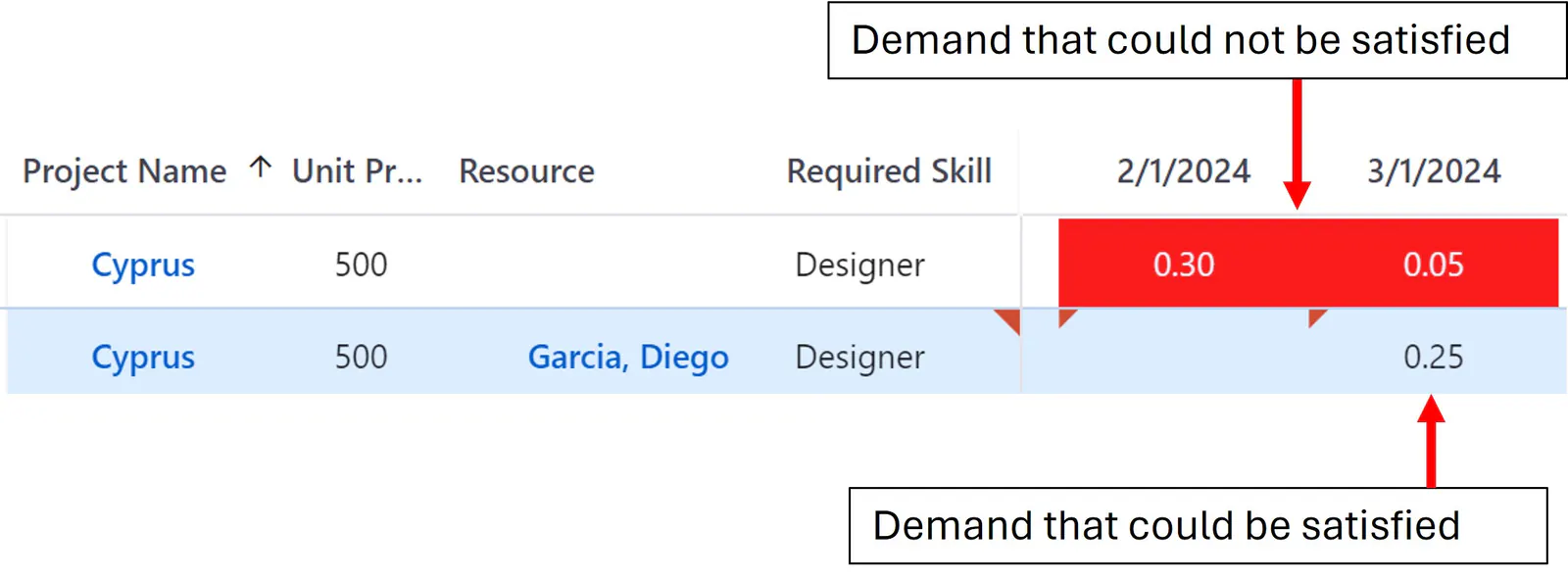
Step 4: Click the Calculate Allocations icon in the page toolbar.
This calculates the Total column for changed assignments.
Step 5: Click the Save icon to save your changes.
Tips
Select resource assignments with shortfall
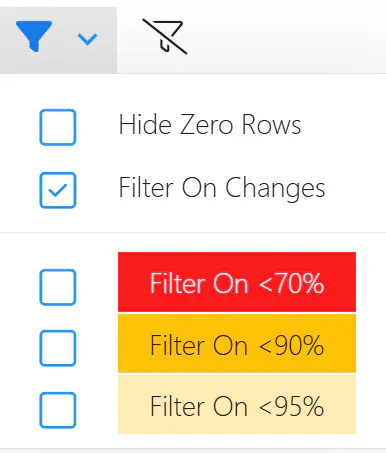
Use the shortfall color filter and the Resource column filter to find named resource assignments with shortfall.
Use the shortfall color filter.
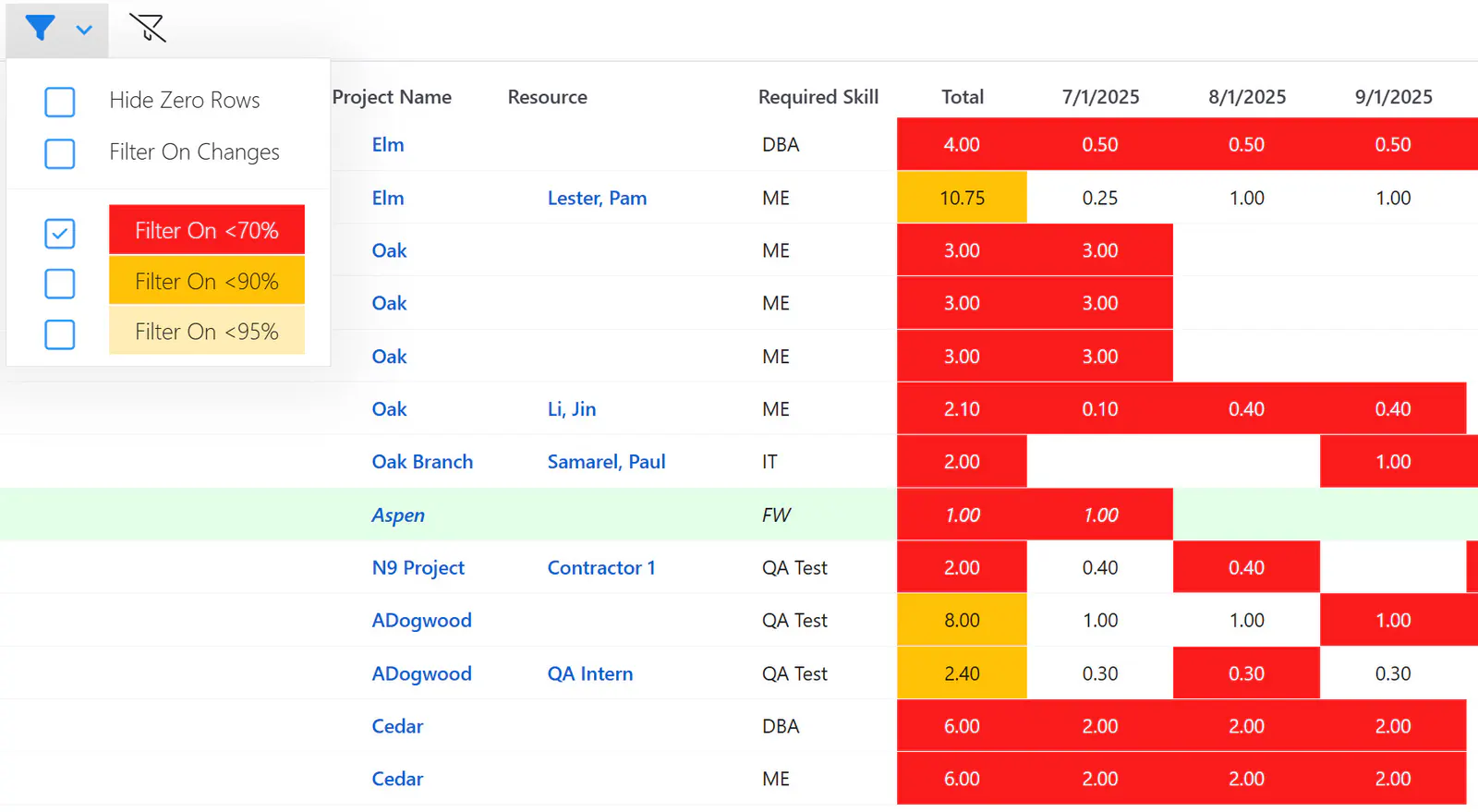
Uncheck [Blank] in the Resource column filter to get named resource assignments.
Then check the top, select all checkbox and Convert to Skill – Shortfall.
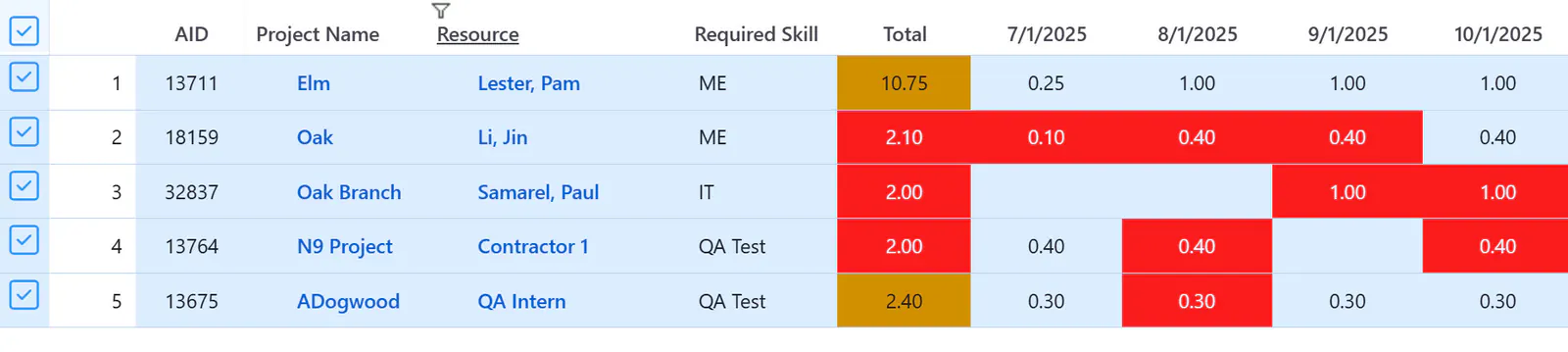
Filter on Changes to see results of the convert
Clear all filters then Filter on Changes to see the new skill assignments and the changed resource assignments.