Administering the Rate Table
This article shows how to edit the Rate Matrix which is used to calculate the cost of labor (both Resource and Skill) assignments.
Overview
The rate matrix is used to calculate labor cost from labor assignment forecast demand.
Atributes (e.g. Skill or Country) are used for a match to assignment fields. The rate with the best match to assignment fields is used to calculate labor cost from labor demand.
See the article Understanding Labor Rates, section Variable Rate Table, for an explanation of how the Rate Matrix is used to calculate labor cost from labor assignments.
Note: Managers with Rate Edit (FR2) and Resource Administrator (R3) rights have an Edit Rates option on their Administration menu, which will allow them to edit the “User Rate.” Aside from that, only those with Administrator rights can edit the Rate Table.
How To
Steps Before Add/Modify Rates
Step 1: Click on the Administration icon (gears icon) on the ResourceFirst main menu column and select Rate Matrix from the menu.
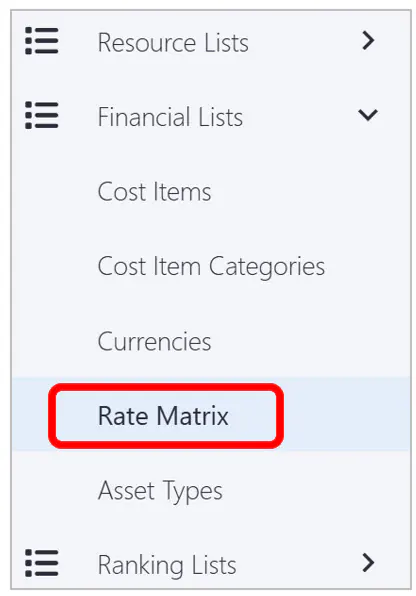
Step 2: Load rates from the database.
The first time you access the Rate Matrix in a session, you must specify rate load criteria. The rates remain during the session until you load a different set of rates.
If you load rates with no criteria you get all rate definitions for the entire environment (which may be very many records).
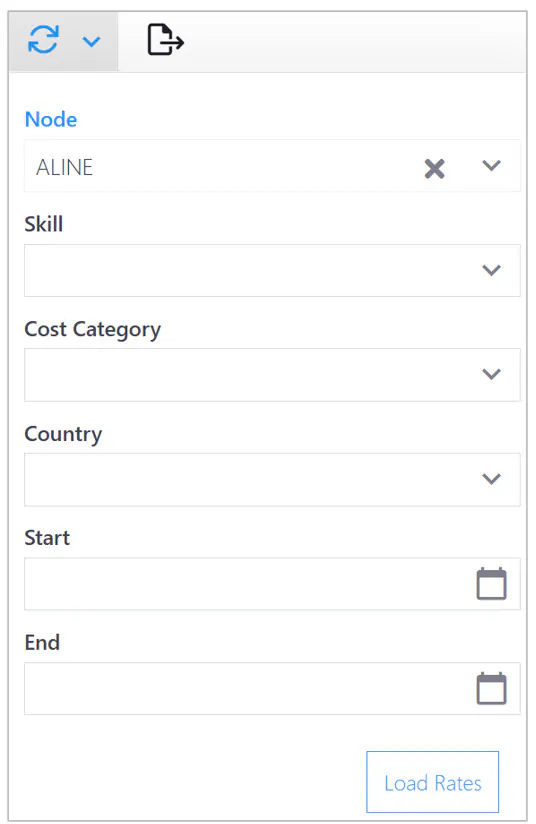
Click the Reload icon at any time to open the Load Rates dialog.

Step 3: Click Load Rates on the dialog.
The Rate Matrix page appears. Rate records that meet the load criteria (if any) are displayed on the page.

Add New Rates
Step 4: Click the “+” icon to add new rate records.
A new empty rate row is added at the top of the table with the Active field set True by default.

Modify Existing Rates
Step 5: Modify existing rate records and click the Save icon.
Enter attributes (e.g. Skill or Country) that will be used for a match to assignment fields. The rate with the best match to assignment fields is used to calculate labor cost from labor demand for each assignment.
Enter/modify the rate and the date range in which the rate is to applied.
How to Change Rate for an Existing Rate Record
The scenario:
You have set a rate for some combination of node, skill, country, and location with a date range from sometime in the past to 1/1/2100 (for example).
The rate is going to change on the current date + 1 day.
The current day is 10/23/2025.
The method:
Step 1: Copy the target rate.
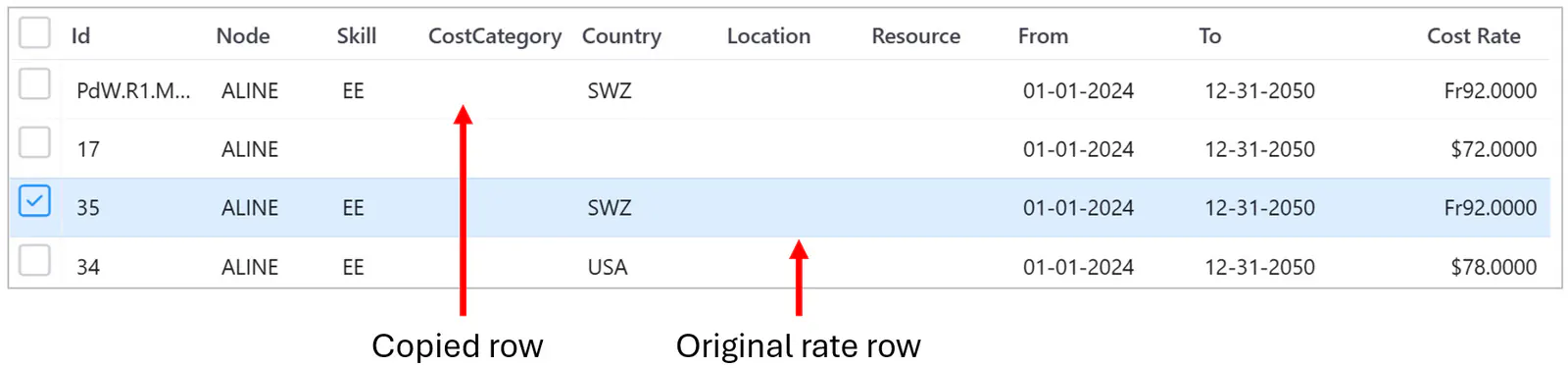
Step 2: Change the original rate row To date to 10/23/2025, the copied row From date to 10/24/2025, and the copied row Cost Rate to 97.
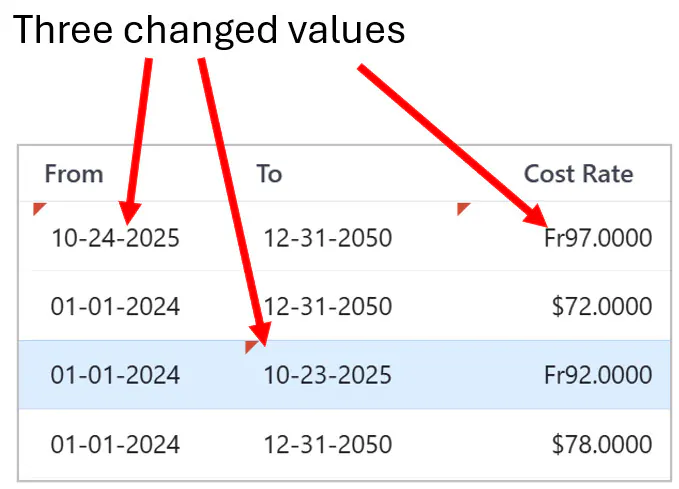
Step 3: Click the Save icon.
Tips & Tricks
For calculating skill assignment cost:
At a minimum, populate the Skill field and another qualifying field such as the Node or Country field.
For example, a Mechanical Engineer from France may have cost rate different from one located in the US.
For calculating blended rates:
If you are using one blended rate per skill per country, create rows for each relevant country-skill combination.