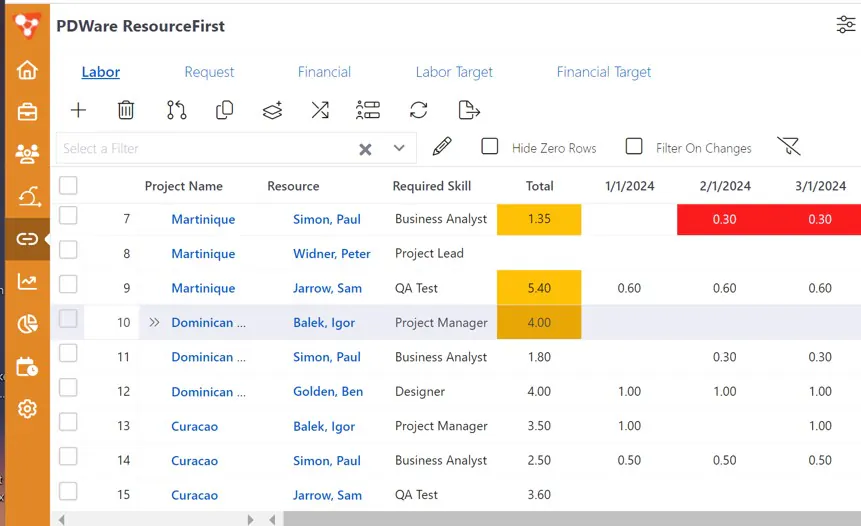
Column Controls
This article describes the features available in the grid page column header drop-down menu.
Overview
Column headers can be used to
sort the grid by column data,
filter the grid by column data,
show/hide columns,
move columns left and right,
freeze columns into left and right panes.
Click the dropdown arrow at the right of any column to access the column controls menu.
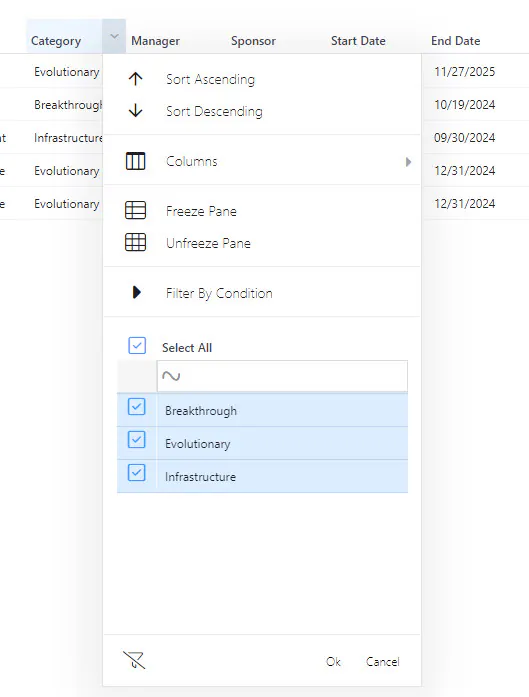
On Page Column Manipulation
When the user makes changes on the page to column properties, the current view specification is modified to reflect the page state.
Column sort and filter with the column controls menu are NOT reflected in the view specification.
Note: When a system-wide view is active and the user modifies column properties, those column settings are saved to the user’s definition of the system-wide view. The only attribute of system-wide views that cannot be changed in this manner is which fields are available for display in the view.
This means that administrator changes to system views do NOT propagate to user modified instances of the system view.
Properties that can be changed by actions on the page are:
Column freeze state
Column visibility
Left-to-right order
Column width
Sorting Columns
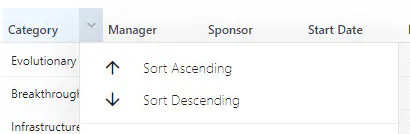
To sort a column based on its values, use one of the following methods:
Click on the column header text to toggle the sort direction, ascending or descending
Use the column header menu to select the sort direction
Filtering on Individual Columns
To filter a column, click the column dropdown and use Filter By Condition or use the value checkboxes to filter the grid.
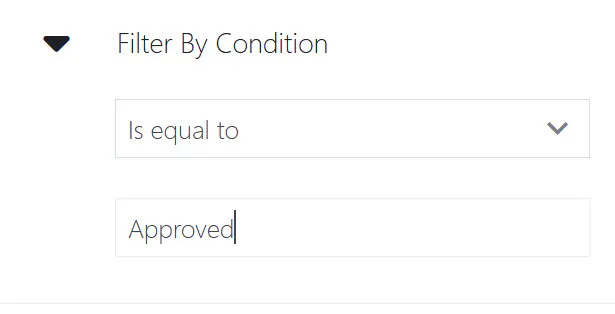
Filter by Condition
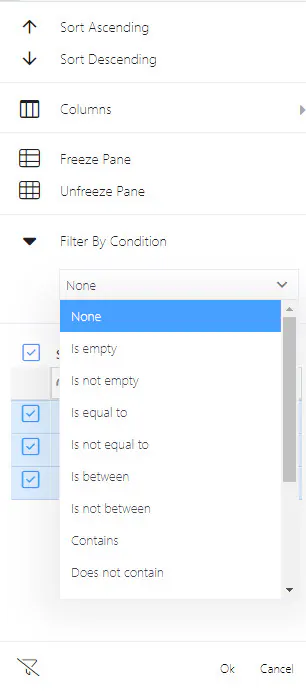
On the Column Controls menu, click the “Filter By Condition” dropdown.
Select one of the compare conditions and enter the compare value.
Filter by Column Data
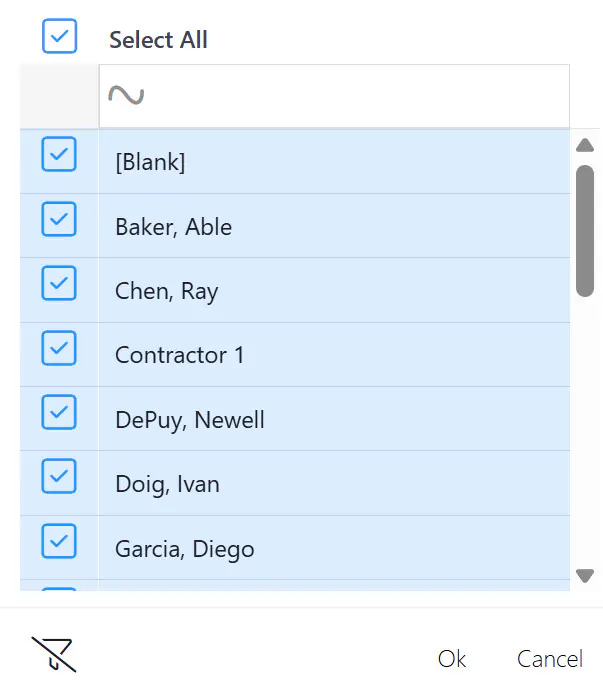
Further down on the Column Controls menu, you can filter based on the data in the column. The data shown depends on the column selected.
Note that you can uncheck “Select All” to filter on one or a small number of values.
In the example below, “on” is used in the search box, so only records with an “on” in the text will be visible.
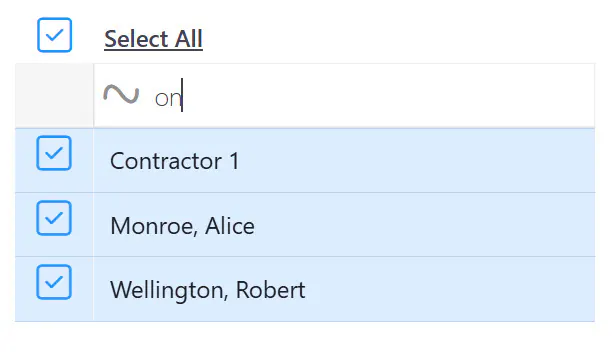
Click OK to execute the filter specification.
The OK button is NOT required for sort, column visibility, and freeze panes actions.
Show/Hide Columns
To show or hide columns, click on the menu Columns in the column header drop-down menu. Check or uncheck the checkbox next to the column name in the drop-down to show or hide the columns.
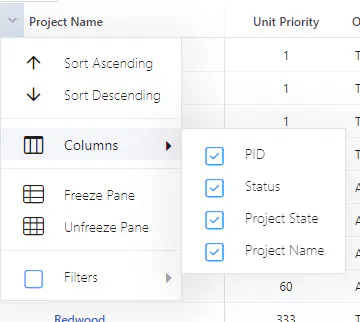
Use the Edit View dialog to add columns that are NOT in the current view. See the article User Defined Views for how to add fields/columns to the view.
Move Columns
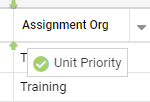
To move a column left, click and drag the column header.
For example, in the screenshot below, the Unit Priority column is being dragged to just before Assignment Org column. The system shows the field being moved in a box as it is dragged. When the mouse cursor is in a place on the column header row where the field can be located, two vertical green markers for the destination appear.
Freeze Panes
Freeze panes in ResourceFirst is similar to Freeze Panes in MS Excel. Frozen columns are in the left pane, unfrozen in the right pane.
The default for most fields/columns is unfrozen; but on all pages at least one column is frozen by default.
In the Assignments screenshot below:
The freeze line is between Project Name and Resource
In this screenshot, there is a horizontal scroll bar at the bottom for the right pane only. There would be a horizontal scroll bar in the left pane if there were any partially or completely hidden fields in the left pane.