Project Status Reporting and History
This article defines the contents of a project status submission, shows how to submit project status, and describes how to view project status history.
Overview
The contents of a project status submission are
Project attributes: The contents of all fields available on the Project Data page (NOT just currently visible ones)
Baseline name, submitter full name and the status submission date.
Other project related data such as labor forecast and actuals, and non-labor forecasts are not saved in a project status submission.
Process Note: Important operational decisions are based on data provided by project managers and resource managers. To keep the data fresh and credible, project teams should submit status on a regular cadence. The cadence should be no more than monthly, more frequently as appropriate.
Status should be submitted monthly at least; more frequently depending on project duration and other factors.
The act of submitting status takes no more than a few seconds if all project attributes and values are unchanged from the previous submission. The user simply clicks an icon and all status content is recorded in a separate status history table in the database.
Before submitting status, update any project field values where the forecast or plan has changed. Fields can be updated on the Project Data page or in a form on the individual Project>Data-Detail>Forms page. Phase and Milestone fields are available only in project forms.
All project fields are available on the Project Data page; if fields are not visible use the Edit Views dialog to expose them. The Project Forms page has only those fields that have been configured in a project form the user can select on this page.
The history of all status submissions is displayed on the Project>Data-Detail>Status History page (see example below).
Status History Page
This page displays a row for every Status and Baseline submission, initially sorted descending on As Of Date (most recent at the top).
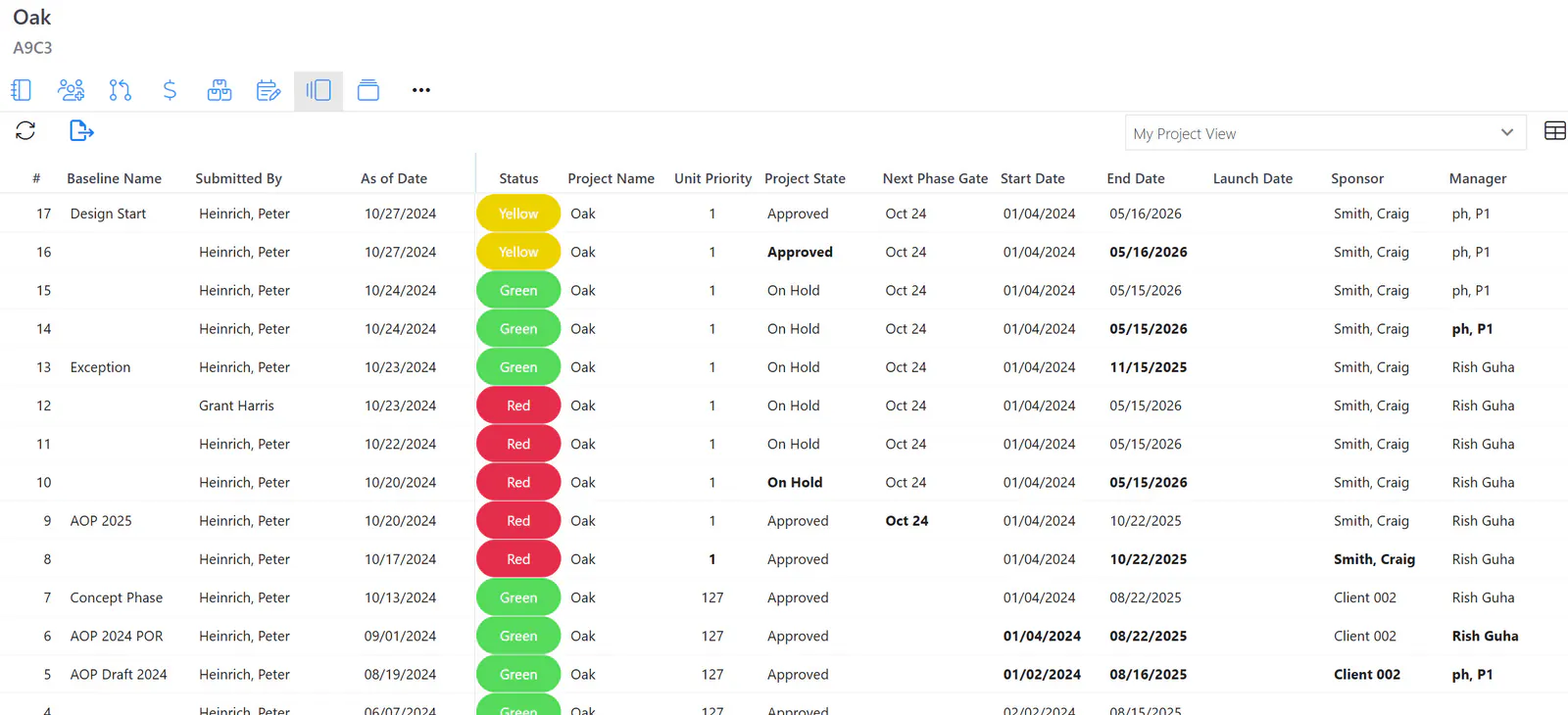
Every Project Data field (column) is available in the table.
All Project Data page views are available; views can be created and edited with the Edit View dialog.
The four columns at the left show information regarding each status submission:
Column 1 – status report number
Column 2 – baseline name (if any)
Column 3 – submitter name
Column 4 – status/baseline As Of date.
If a value in a field is different from the value in the previous submission, the value is highlighted with bold font.
Note: Phase finish dates and milestone dates are NOT available on this page. However, phase and milestone dates and attributes ARE saved to the database. They are thus available in custom reports.
How To
Preparing to Submit Status
Ensure that all project field values are current and correct.
Project Data page: All fields except phase and milestone date fields can be updated on this page. Use this page if you are updating the status of multiple projects.
Project>Detail>Info page: Project fields configured by an administrator on project forms can be updated on this page including phase and milestone date fields.
Submit Status
On the Project Data page,
Step 1: Select one or more projects (with the checkbox at the left of the row).
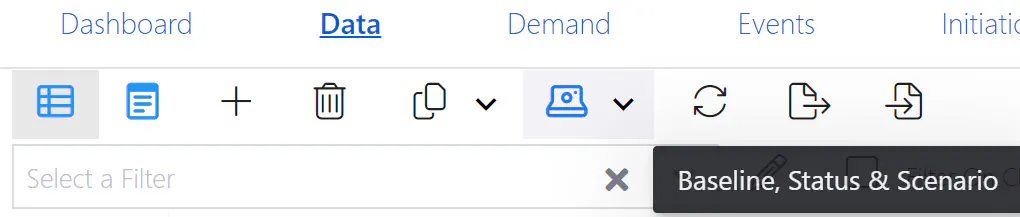
Step 2: Click the Baseline, Status & Scenario icon.
Step 3: Click the Submit Status menu.
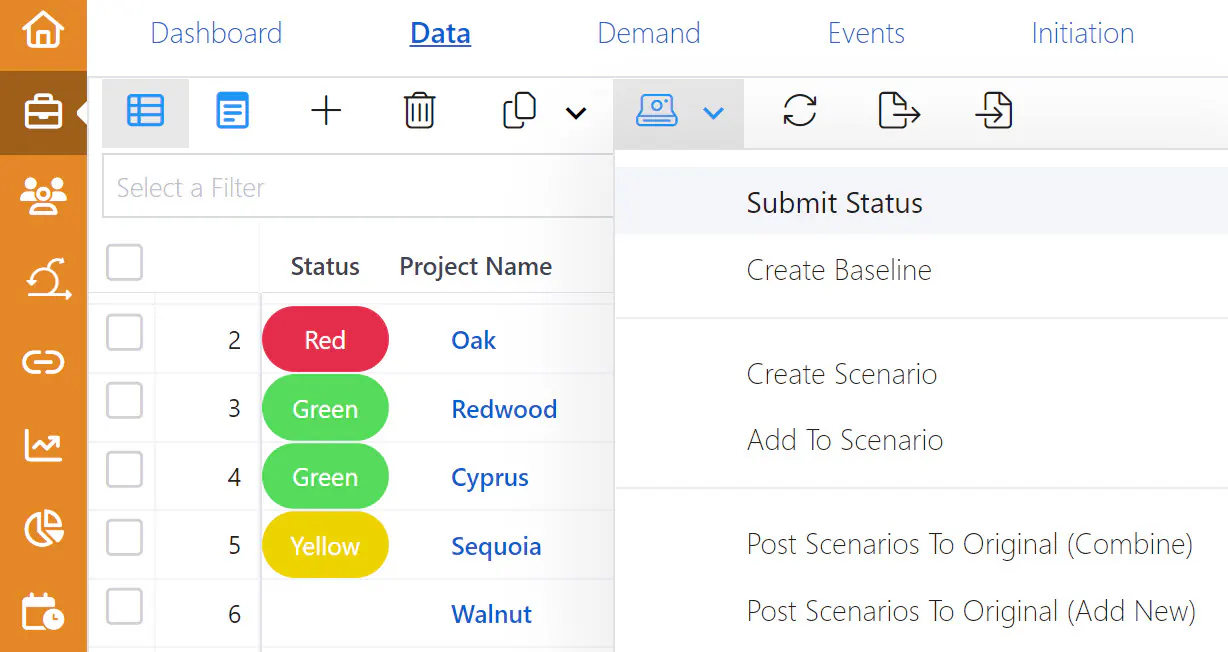
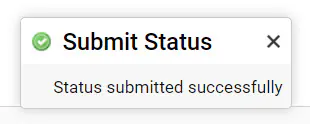
A temporary submit confirmation message appears at the lower right of the page.
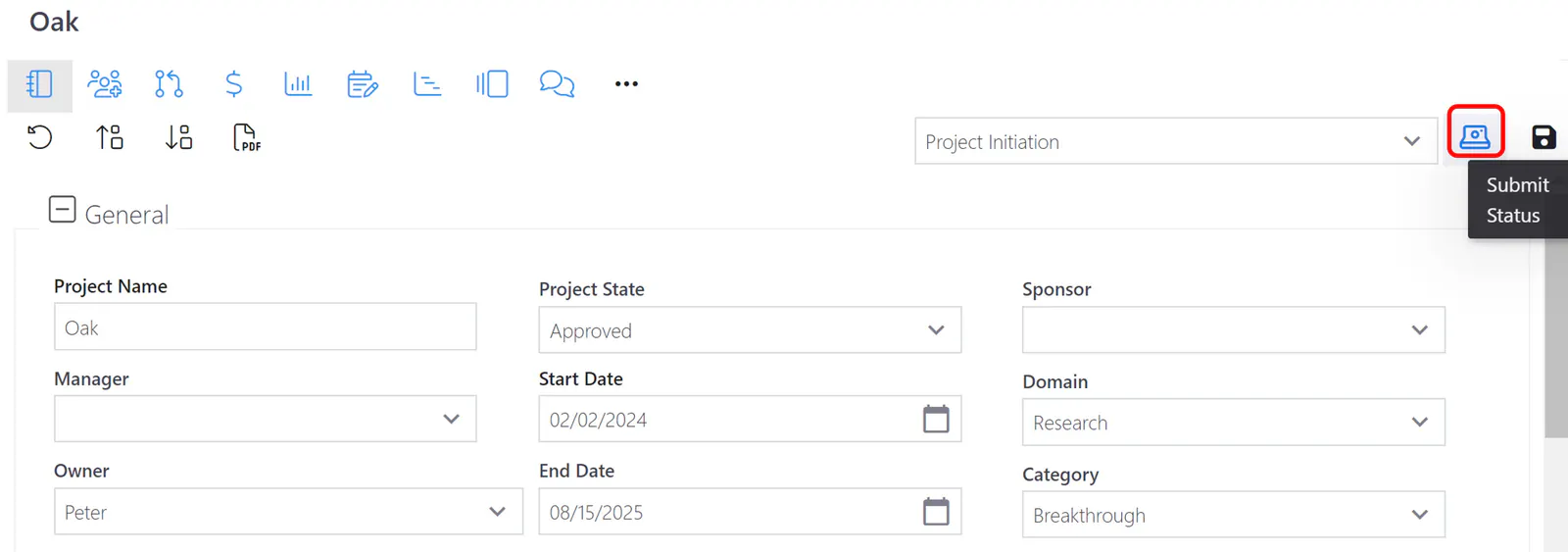
On the Project>Data-Detail>Info page,
Step 1: Click the Submit Status icon.
A temporary submit confirmation message appears at the lower right of the page.
Viewing Status History
Step 1: Drill down to the project’s Detail.
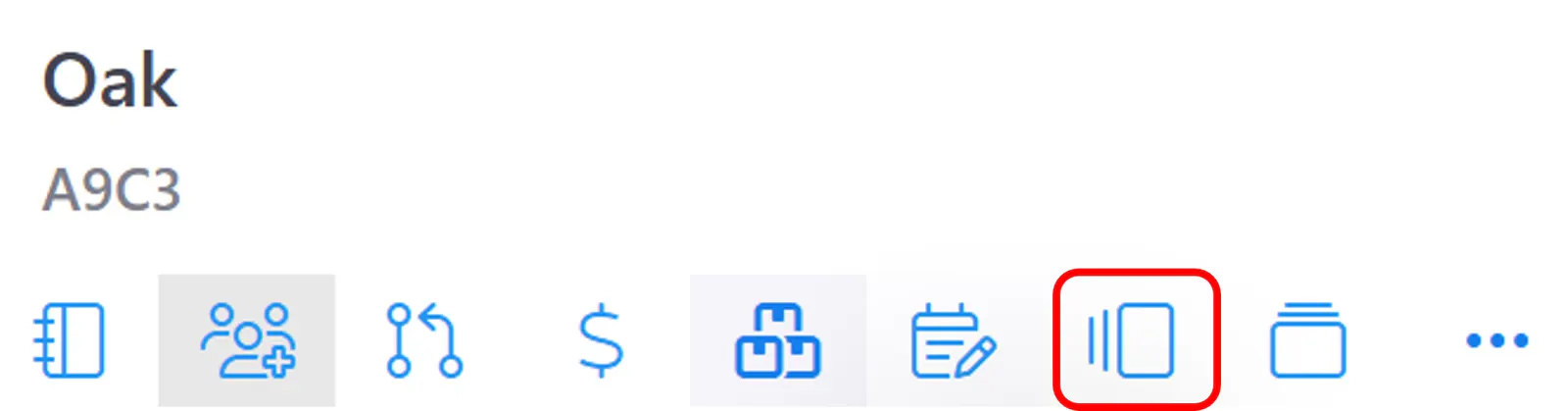
Step 2: Click the Status History page icon.