Candidates to Replace Demand Overview
This article explains how to replace shortfall or demand on skill or resource assignments with remaining or full capacity of resources who meet assignment requirements.
For the simple steps to replace shortfall or demand on an assignment with a resource who has availability to staff it, go to the How To section in the article Candidate Assignments for Resource Availability.
Overview
There are multiple situations when you might want to assign a named resource to replace part or all of the demand on an assignment:
A Skill assignment in upcoming time periods,
A resource assignment that has shortfall*,
All assignments of a resource who is leaving the organization (Convert to Skill is another option in this case),
A host of other reasons for changing workload among resources.
*In the context of the Candidates feature, ALL demand on skill assignments is shortfall.
The shortfall option is relevant on resource assignments only.
Terminology
Regarding the Candidates features,
The assignment that will have shortfall or demand replaced is called the target.
The resource that will provide remaining or all capacity to the target is called the demand source.
Candidate Replace Methods
There are two candidate replace methods in ResourceFirst: Candidate Resources and Candidate Assignments
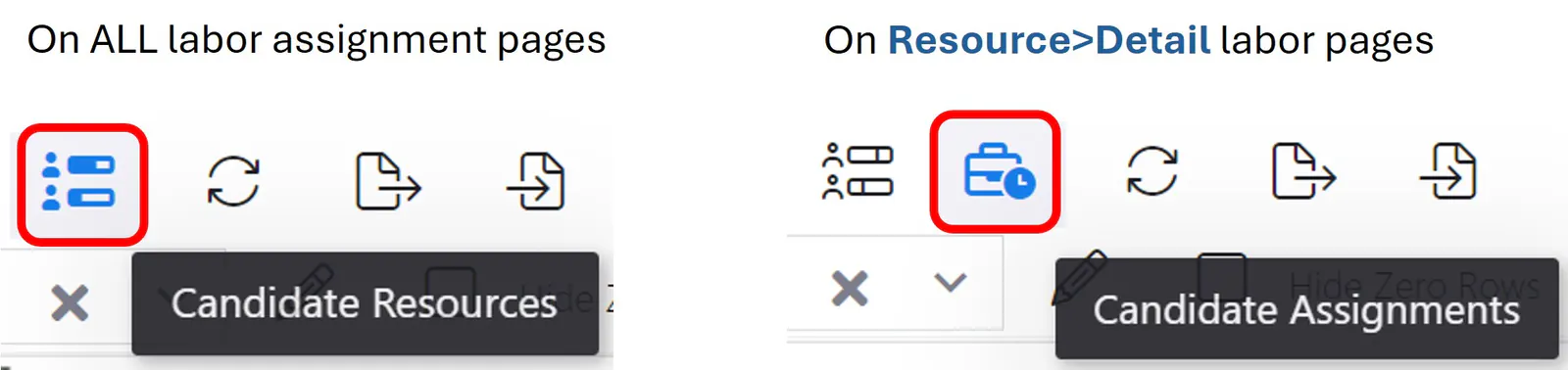
Candidate Resources
The Candidate Resources icon is on all labor assignment pages –
Assignment>Labor,
Project>Data-Detail>Labor, and
Resource>Data-Detail>Labor.
Candidate Resources answers the question, “What resources can satisfy some or all of the needs of the selected target assignment?”
For a description of the Candidate Resources feature, see the article Candidate Resources to Replace Assignment Demand.
Candidate Assignments
The Candidate Assignments icon is on the Resource>Data-Detail>Labor page only.
Candidate Assignments answers the question, “What assignments have needs that the resource on this Detail page can partially or completely satisfy?”
For a description of the Candidate Assignments feature, see the article Candidate Assignments for Resource Availability.
Important Note: Replacement of target demand applies ONLY in the current data load date range. Demand in periods before or after the current data load date range is unaffected by candidate replacement.
Candidate Search
The target assignment has five attributes that are used to expand or narrow the search for a match between a resource with supply and an assignment with demand:
Assignment (resource) OBS node
Required skill
Locale: Country and Location
Availability (remaining capacity) or full capacity
Target period shortfall or demand on the assignment
The four checkboxes in the Candidates pane are essentially “ignore” commands.
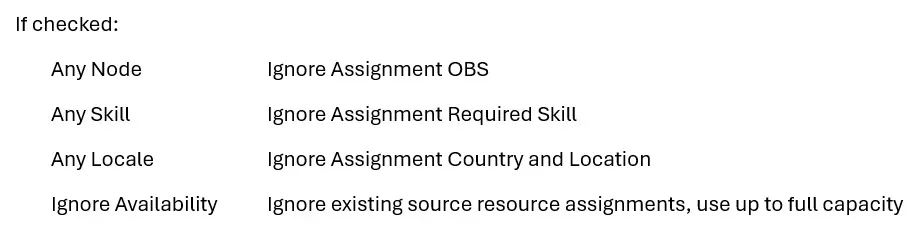
Note that the first three refer to the target assignment; the fourth refers to the supplying resource.
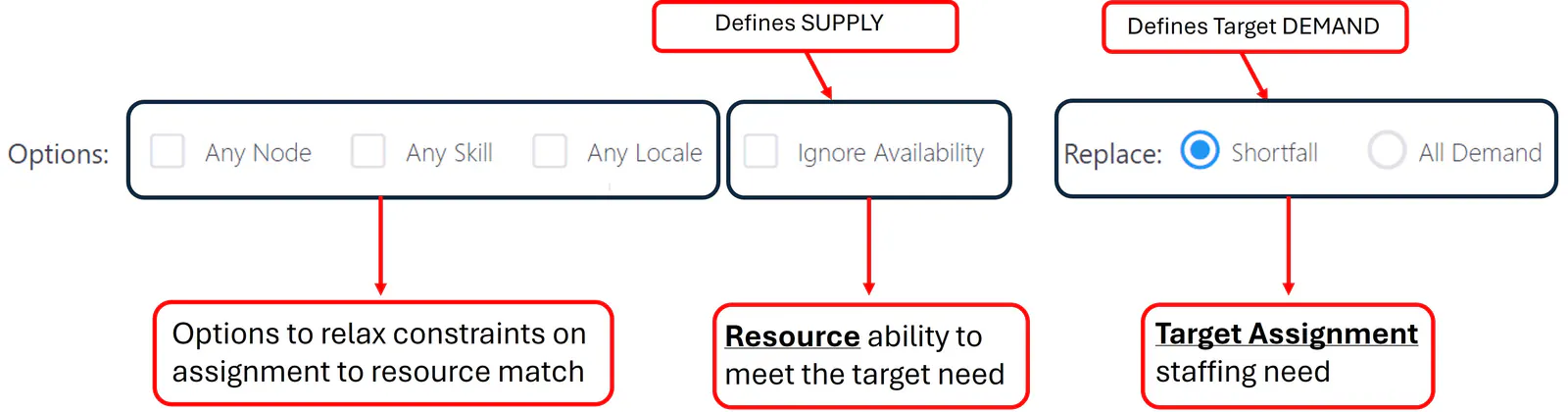
Source Resource Availability
The supply-demand analysis calculation allocates resource capacity to named resource assignments first. This calculation defines how much remaining capacity resources have in every time period.
Remaining capacity equals capacity minus demand (if > 0). If the Ignore Availability checkbox is checked, total capacity is used in place of remaining capacity.
Resource availability for an assignment is a function of target assignment need (shortfall or all demand) and the amount of remaining capacity in each period to meet that need.
Important: Values in replacement periods are editable. This means you can tailor the demand on the resulting assignment to precisely the periods of need you want to replace.
Clear availability in periods you do NOT want to replace demand; change values where you want less (or more) than the current availability. For example, you should remove replacement demand in past periods. Do not change historical forecast demand.
Warning: There is no restriction on the candidate values you enter. If you enter 5 (FTE) in a period and click the Replace or Assign button, that amount will be on the new replacement assignment.