Managing Currencies
This article shows how to define multiple currencies and set the default currency.
Overview
ResourceFirst allows for managing multiple currencies. Administrators can define currencies to be used for a country, and can designate any of the currencies as the default currency.
The currency is applied to every resource or assignment record that contains the corresponding country, and can be defined with a precision up to 6 decimal points. Currencies can have their unique symbols displayed in the views.
Currencies are defined in Admin > Financial Lists > Currencies
Currencies are connected to countries via the Countries list in Admin > Resource Lists > Countries.
How To
Access the Currency Table
Click the Admin (gear) icon on the Main Menu Column and select Financial Lists > Currencies.
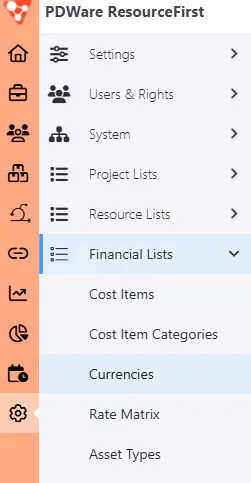
You will be presented with the Currencies page:
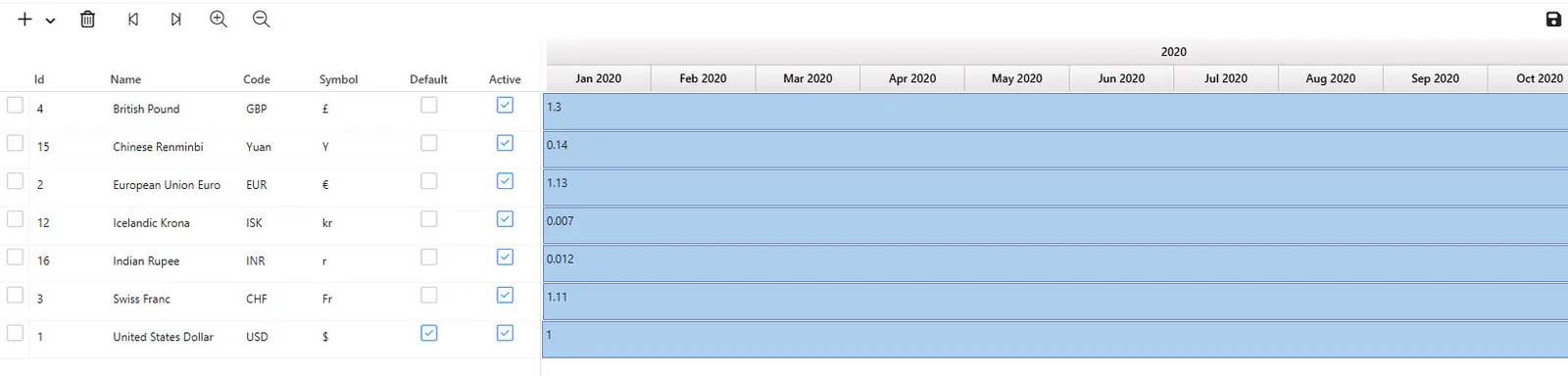
To make a currency the default currency, check the Default check box next to the desired currency.
To make a currency active or inactive, check or uncheck the Active check box accordingly.
Add a New Currency
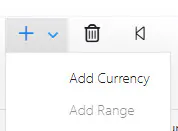
Step 1: Click the + dropdown on the page toolbar and select Add Currency:
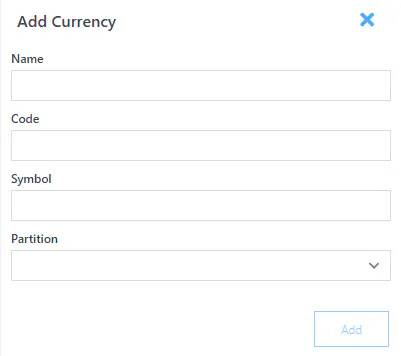
Complete the dialog and click Add:
Step 2: Click the Save button on the upper right of the Currencies page.
Add a Ratio and Range
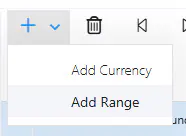
Step 1: Click the + dropdown on the page toolbar and select Add Range:
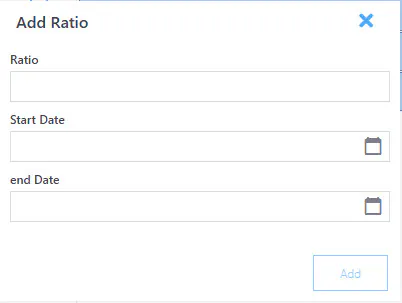
Complete the dialog (enter the conversion rate and a start and end date as desired), then click Add:
Step 2: Click the Save button on the upper right of the Currencies page.
Connect a Currency to a Country
To connect a currency to a country, add it to the respective country in Admin > Resource Lists > Countries.
For financial assignments, labor assignments (in cost view), or resources, if a country is designated, the costs will reflect the associated currency.
Show Cost in Default Currency
Cost/Financial data can be converted from local currency to the default currency. To enable this:
Step 1: Go to User Options (leftmost icon below on the Main Application Toolbar).

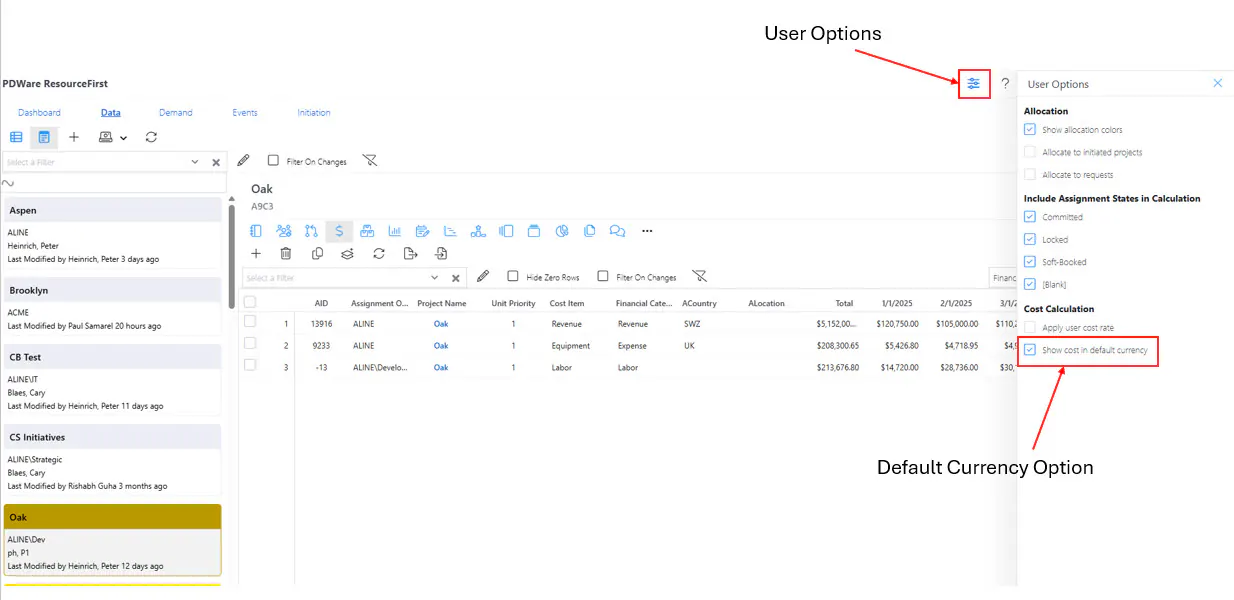
Step 2: Check the “Show Cost in Default Currency” option. This allows totals to make sense, since all currencies will be converted to the default currency.
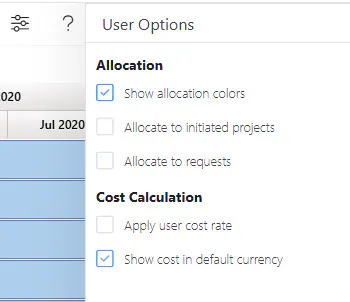
Step 3: Click Apply to apply your changes.