How To Administer User Rights
This article shows how to set and modify rights to data and system features for ResourceFirst users.
If you are unfamiliar with the Rights page or need a refresher on its features, see article The User Rights Page.
If you are unfamiliar with the meaning of assigning a right to a user, see article Administering User Rights – Effects.
Objects Rights Apply To
Some rights apply to OBS nodes: for example, all projects in a project OBS node or all resources in a resource OBS node.
Other rights apply to individual projects or people: for example, F1 and P1 apply to individual projects independent of project node.
Finally, “Financial OBS”, also called the “Cost Center OBS”, is either the resource OBS (default) or the project OBS depending on a configuration variable in the license key for the ResourceFirst environment.
Rights Apply To
For all these actions, go to the Admin>Users & Rights>Rights page.
Create Rights for a User
Step 1: Select one or more user checkboxes in the Users list.
Step 2: Select a right type in the Right Types list.
If the right applies to the selected user, there is no list of “Apply To” objects.
Go to Step 4.
Step 3: Select the object the right applies to in the list below the Right Types list.
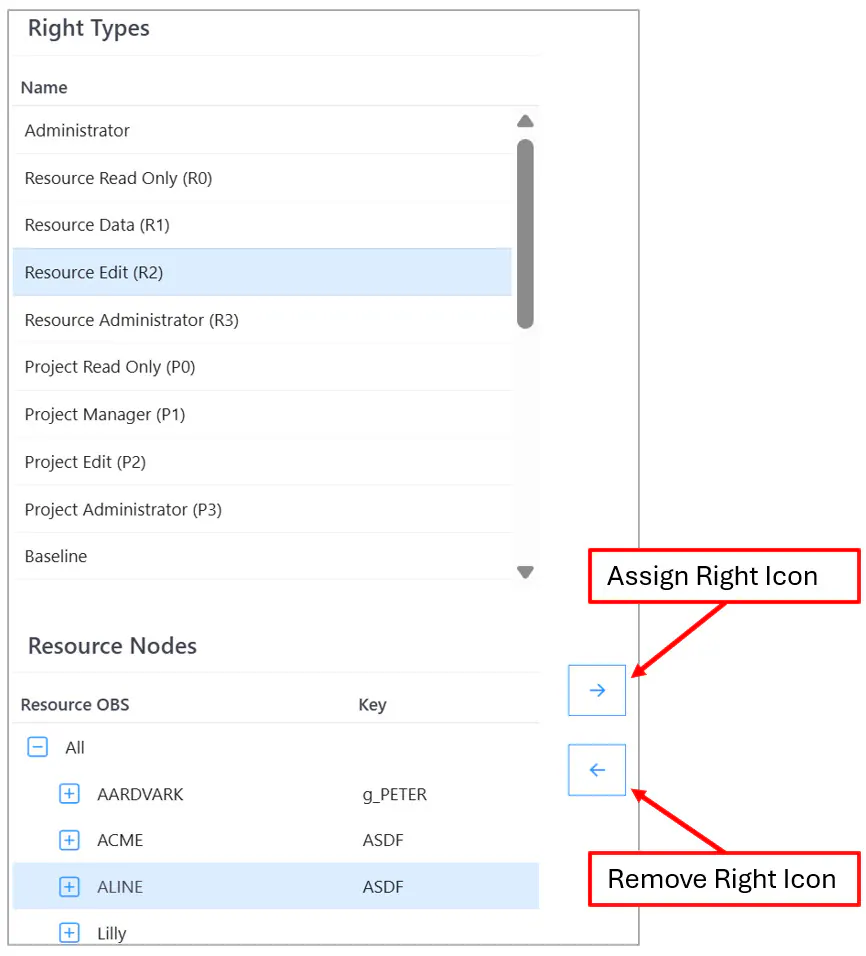
Step 4: Click right pointing arrow “assign right” icon.
Changes to rights are saved to the database immediately.
The changes take effect at the next reload or login.
There is no Save icon on the Rights page.
Copy Rights to Users
You can copy rights from one user to one, or more, users.
Step 1: Hover over the source user row in the Users list.
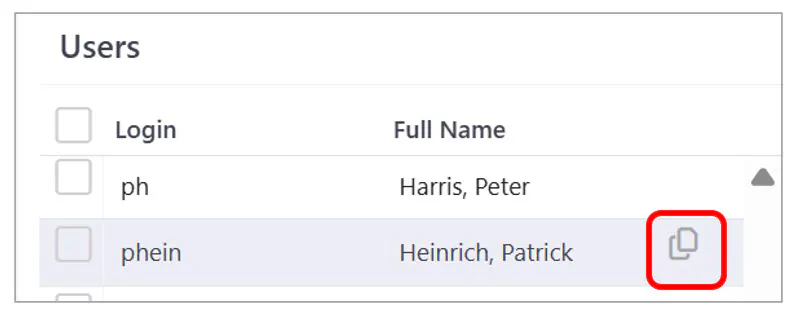
Step 2: Click the Copy icon that appears in the source user row.
Step 3: Select destination user(s) in the Duplicate Rights From dialog.
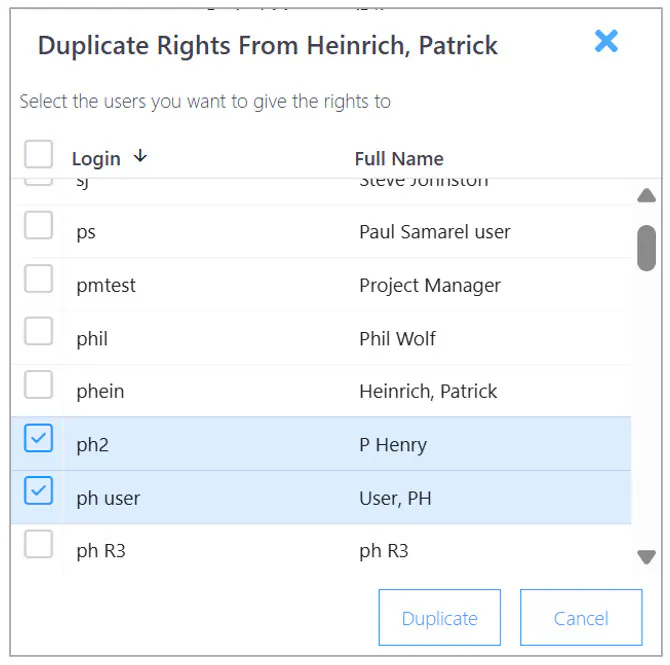
Step 4: Click the Duplicate button.
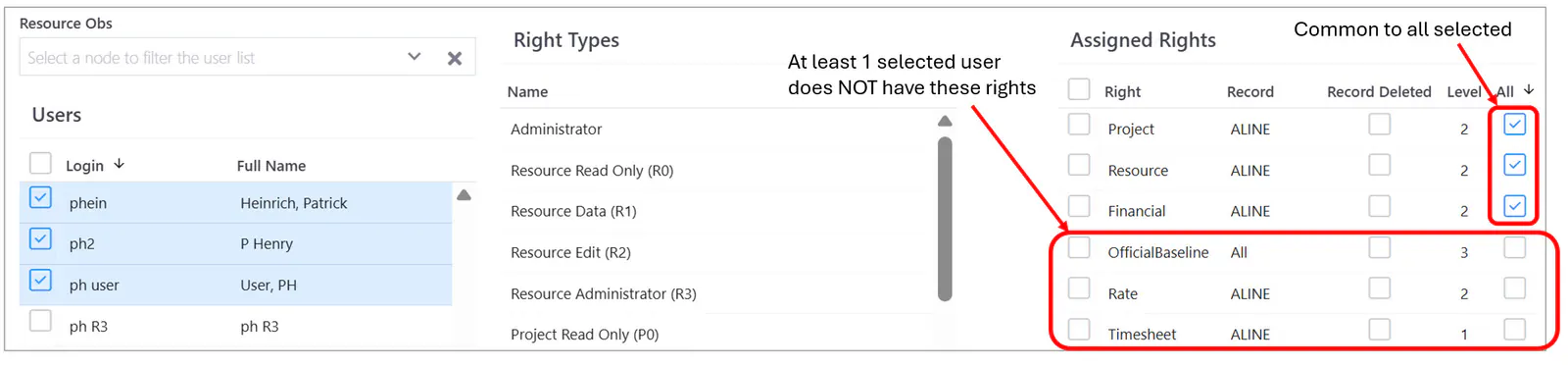
Step 5: Fine tune destination rights if necessary.
Delete Rights
Step 1: Select one or more user checkboxes in the Users list.
Step 2: Select checkboxes for one or more assigned rights.
Step 3: Click the left pointing “remove rights” icon.
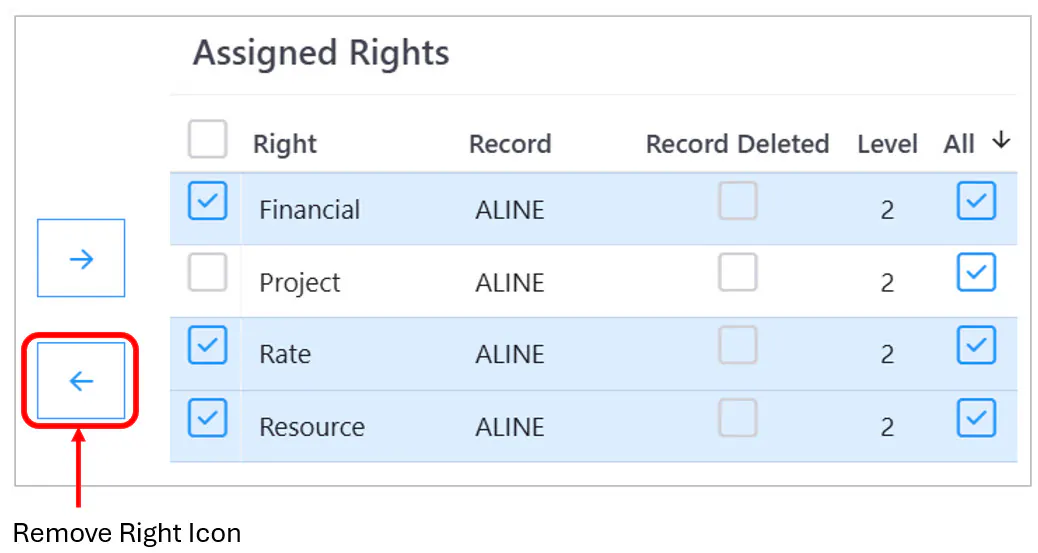
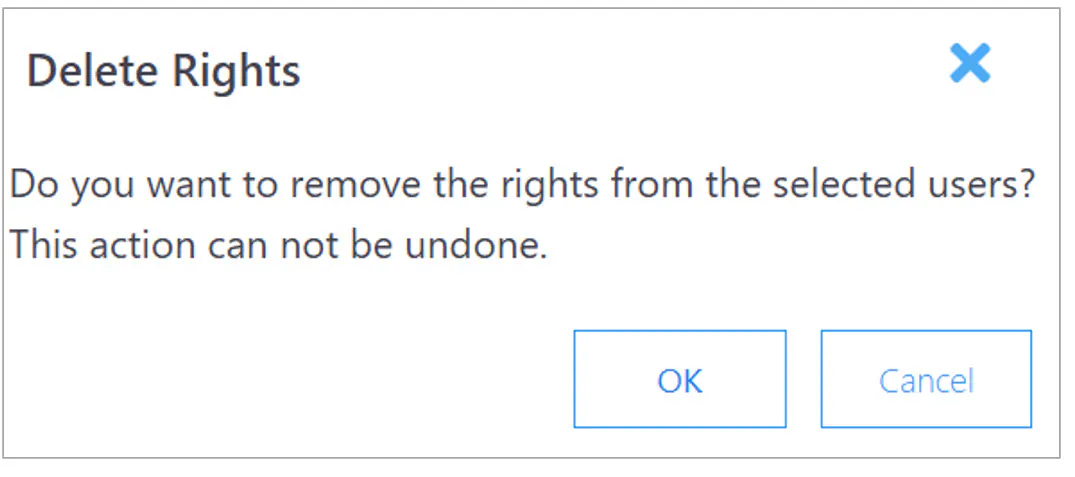
Step 4: Click the OK button on the Delete Rights dialog.