Copying Projects
This article shows how to copy an existing project to an existing project or to create a new project.
Overview
There are two Copy Project options: Copy to New and Copy to Existing. They both copy all project fields (attributes) and all assignments (labor and financial) from a selected project to a destination project.
But they do that in very different ways and the results can be very different.
Copy to New creates a new project in the database and copies all project field values and all assignments (if specified) from the source project to the new project.
The Copy to New operation is NOT constrained by the current data load parameters. It copies ALL assignments with values from ALL periods present in the source project.
If the source project has a gap between project start and demand start (plus or minus), the copy will have the same gap from its start date.
Save is NOT required unless values are changed later during the session.
Copy to Existing copies all project field values and all assignments (if specified) present in the current data load from the source project to the specified destination project.
The Copy to Existing operation IS constrained by the current data load parameters. It copies assignments for OBS nodes present in the current data load with values from periods specified in the data load date parameters.
Note: Save IS required on EVERY page affected by the copy: Project Data, (labor) Assignments, and (financial) Assignments.
[Save is a page-specific operation in ResourceFirst. A Save issued while on the Project Data page does NOT save changes made on any other page such as Assignments.]
How To
Copy Project
Step 1. Select the source project row on the Project Data page.
Step 2. Click the Copy Project icon  in the Page Toolbar at the upper left of the page.
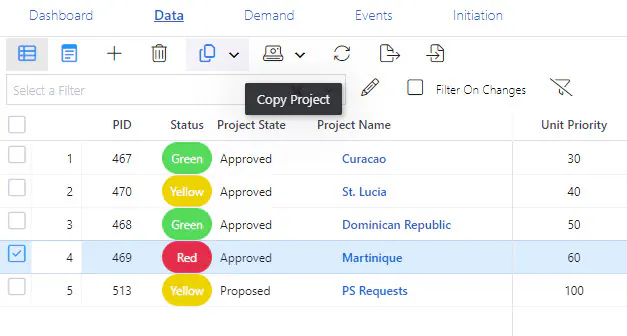
Step 3. Select the desired option.
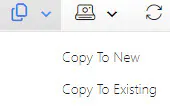
Copy to New
Use Case: User HAS rights to create projects and save them to the database.
After steps 1 to 3 above,
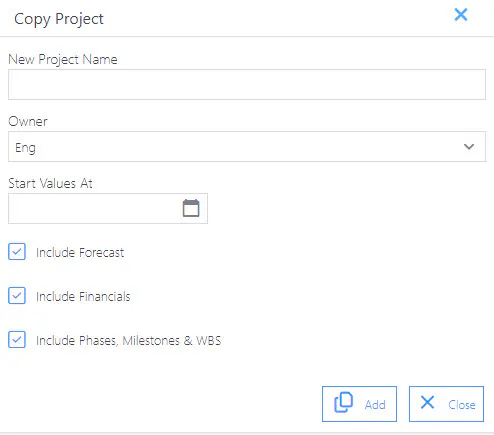
Step 4. Enter the new project name and project OBS node (in the Owner field).
Step 5. Enter the values start date. Reminder: If the source project has a gap between project start and demand start (plus or minus), the copy will have the same gap from its start date. This date will be used as the Project Start Date for the new project.
Step 6. Select the data types to copy.
Step 7. Click the Add button.
Step 8. Save is NOT necessary unless you modify values.
Copy to Existing
Use Case: User does NOT have rights to create projects and save them to the database.
After a user authorized to create projects has created or approved initiation of a new project, you execute the following steps.
After steps 1 to 3 above,
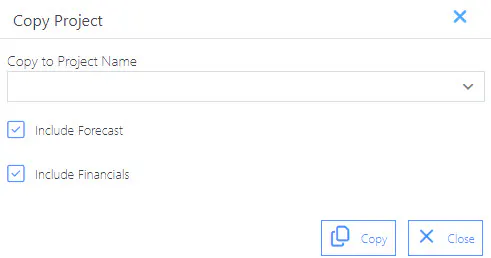
Step 4. Select the destination project from the drop down.
Step 5. Select the data types to copy.
Step 6. Click the Copy button.
Step 7. Click the Save icon on the Project Data page.
Step 8. Navigate to the labor Assignments page and click the Save icon.
Step 9. Navigate to the financial Assignments page and click the Save icon.